CSS Art – Build an Isometric Hi-Hat with Gradients & Rotate - Part 1
Build an isometric hi-hat cymbal in pure CSS. Learn gradients, border radius and rotate in this beginner-friendly CSS art article


Introduction
Think CSS is only for styling web pages? Think again! In this three-part article series, you'll create an isometric Hi-Hat Cymbal illustration using nothing but HTML and CSS.
In this three-part article series, you'll discover how simple shapes, precise positioning, and creative styling techniques can be combined to transform ordinary web elements into realistic hi-hat cymbal hardware.
- In Part 1, the article you're reading now, you'll focus on building the hi-hat's foundation by creating the tripod stand. This includes the center support column, adjustment hardware, support braces (connectors), and the three legs that give the stand its stability and structure.
- In Part 2, you'll create the remaining hi-hat components, including the Bottom Hat, Top Hat, Top Hat Rings, Clutch, and Pull Rod. These elements will come together to form the complete hi-hat cymbal assembly.
- In Part 3, you'll bring the illustration to life using CSS Custom Properties (variables) and CSS gradients. These techniques will help you add realistic metallic finishes, subtle highlights, shadows, and depth, transforming the basic grayscale shapes into a polished and visually appealing hi-hat cymbal.
CSS properties you’ll be exploring in this article:
rotateborder-radiuselliptical slash notationleft,top,widthandheight
Preview
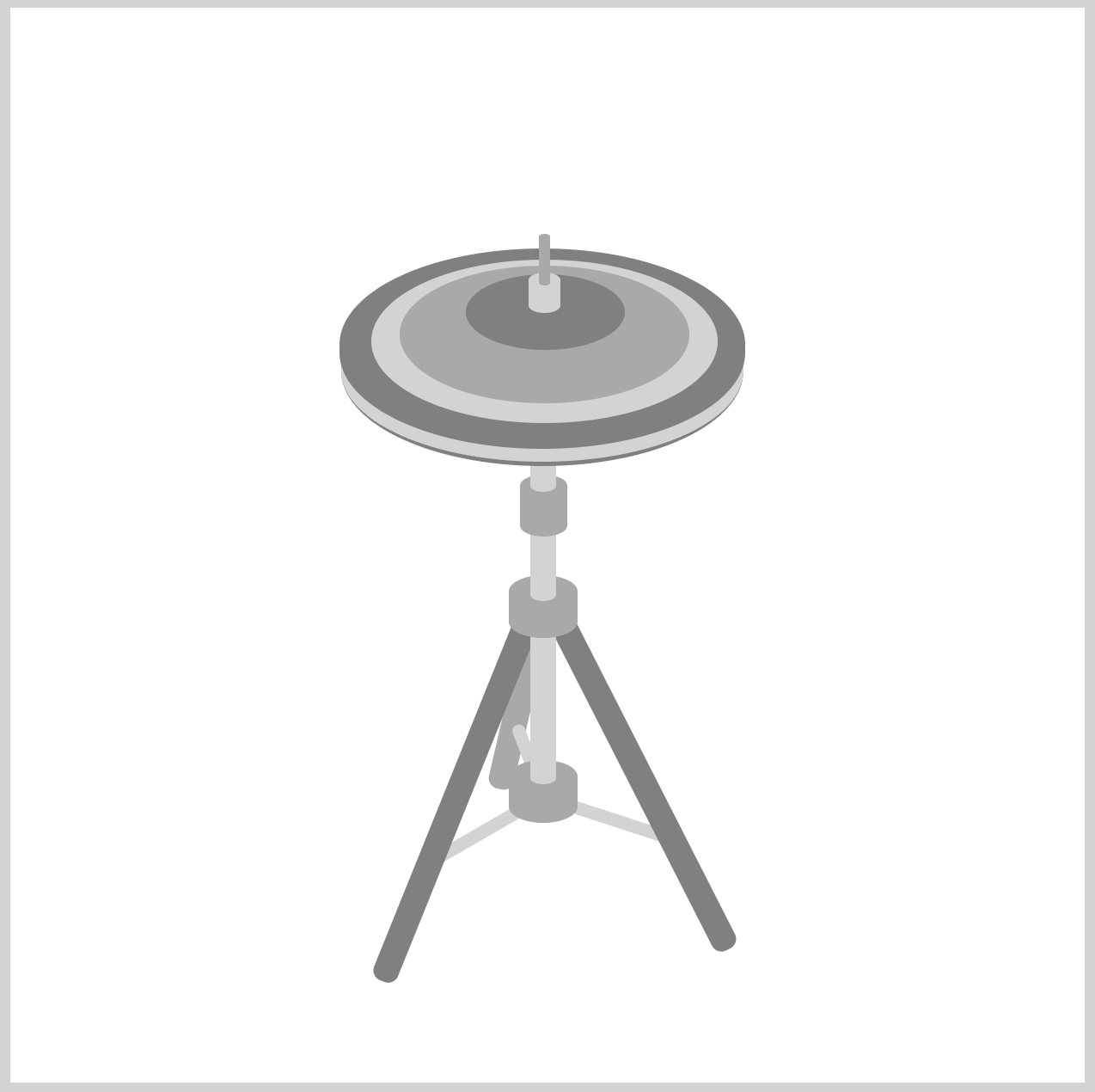
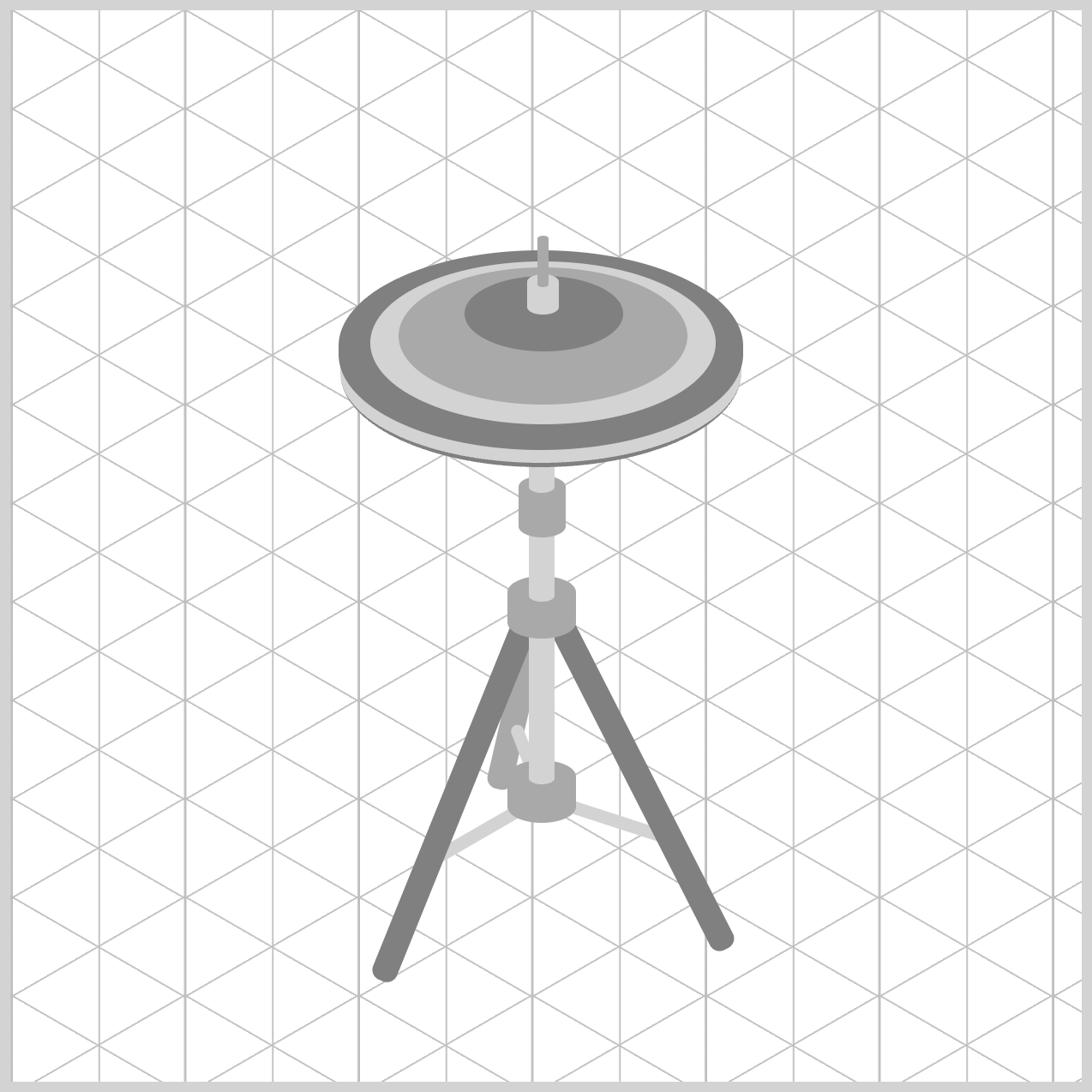
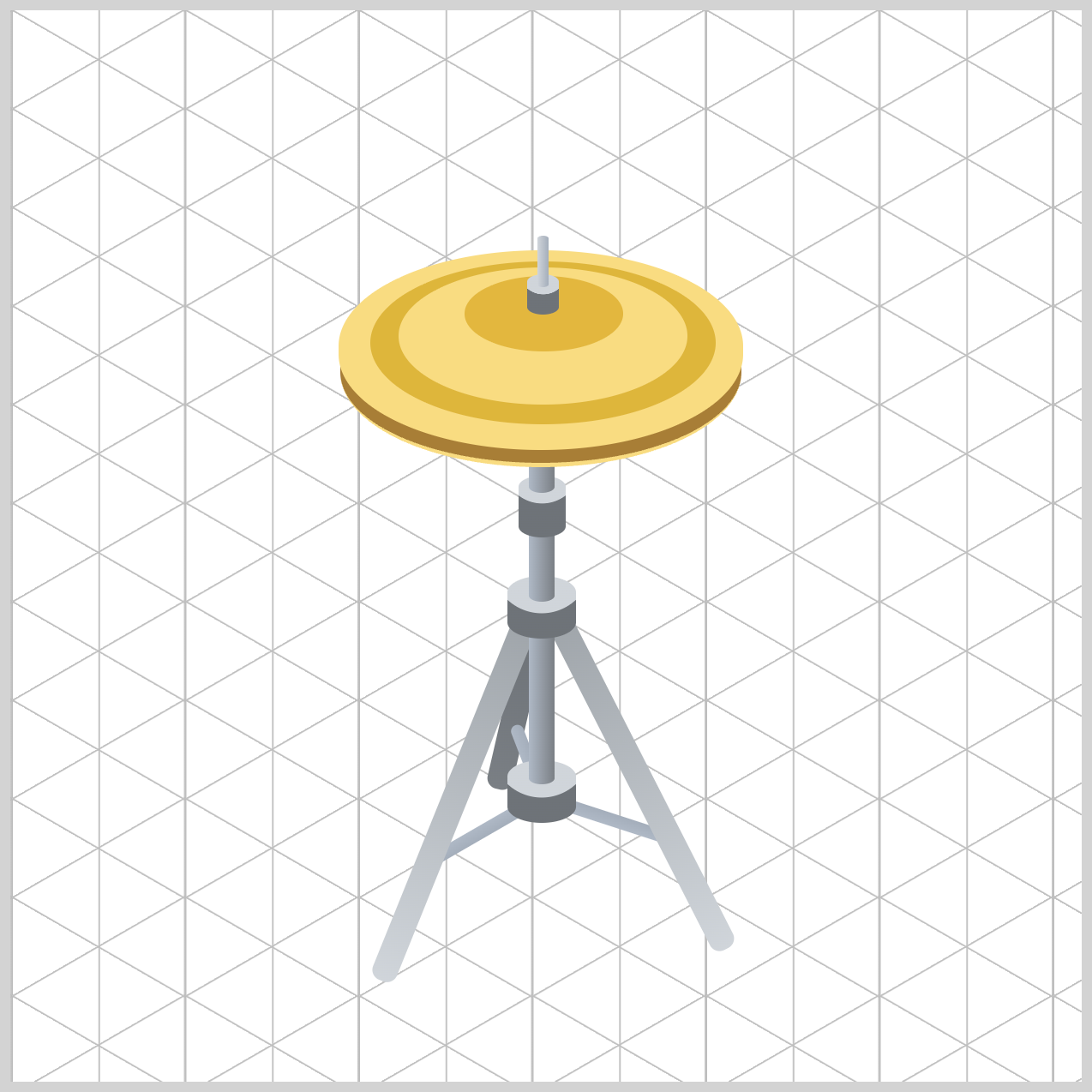
Here's a quick preview of the isometric hi-hat cymbal you'll create throughout this three-part article series.
Prerequisites
Essential CSS and HTML knowledge will help you understand the concepts and techniques introduced in this article. Jump over to this article if you require an HTML and CSS primer.
We assume you have configured tools to modify CSS. If not, this article will guide you through the setup process.
HTML Structure
<div class="container">
  <!-- Stand -->
  <div class="stand-third-leg"></div>
  <div class="third-leg-connector"></div>
  <div class="first-leg-connector"></div>
  <div class="second-leg-connector"></div>
  <div class="stand-first-leg"></div>
  <div class="stand-second-leg"></div>
  <div class="joint-assembly joint-1"></div>
  <div class="base-tube"></div>
  <div class="joint-assembly joint-2"></div>
  <div class="middle-tube"></div>
  <div class="tilter"></div>
  <div class="upper-tube"></div>

  <!-- Hi-Hat -->
  <div class="bottom-hat"></div>
  <div class="top-hat"></div>
  <div class="top-hat-rings"></div>
  <div class="clutch"></div>
  <div class="pull-rod"></div>
</div>
container is the outermost enclosure. It enables the content to be centered and draws a light gray border. The rest of the <div>s represent each image component.
Keep the HTML structure as is for the image to display correctly.
Body and Container <div> CSS
CSS code for the body and container <div>.
/* Body and Container Settings */
/* Center shapes */
body {
  margin: 0;
  padding: 0;
  height: 100vh;
  display: flex;
  justify-content: center;
  align-items: center;
  flex-wrap: wrap;
}

/* Set background and border color */
.container {
  width: 500px;
  height: 500px;
  border: 5px solid lightgray;
  background: transparent;
  position: relative;
  margin: 5px;
  display: flex;
  justify-content: center;
  align-items: center;
}
Common Properties
Using a grouped selector, you can apply position: absolute to multiple elements at the same time. This keeps your CSS cleaner and easier to read because you only need to write the declaration once instead of repeating it for every individual selector.
/* Common Properties */
.tilter,
.tilter::before,
.joint-assembly,
.joint-1,
.joint-2,
.base-tube,
.middle-tube,
.upper-tube,
.first-leg-connector,
.second-leg-connector,
.third-leg-connector,
.stand-first-leg,
.stand-second-leg,
.stand-third-leg,
.top-hat,
.top-hat-rings,
.top-hat-rings::before,
.top-hat-rings::after,
.bottom-hat,
.pull-rod,
.clutch {
  position: absolute;
}
As your project grows, this approach also makes the stylesheet easier to maintain, since any future updates can be made in a single location rather than across multiple rules.
Stand Assembly
In this section, you'll create the Stand Assembly, which forms the foundation of the hi-hat stand. Using a series of simple rectangular shapes, you'll build the Base Tube, Middle Tube, and Upper Tube that make up the stand's central support column.
Each tube is carefully sized and positioned to create the appearance of an adjustable metal stand. As these components are stacked together, they begin to resemble the telescoping hardware commonly found on real drum stands. By the end of this section, you'll have completed the main vertical structure that supports the hi-hat cymbals above.
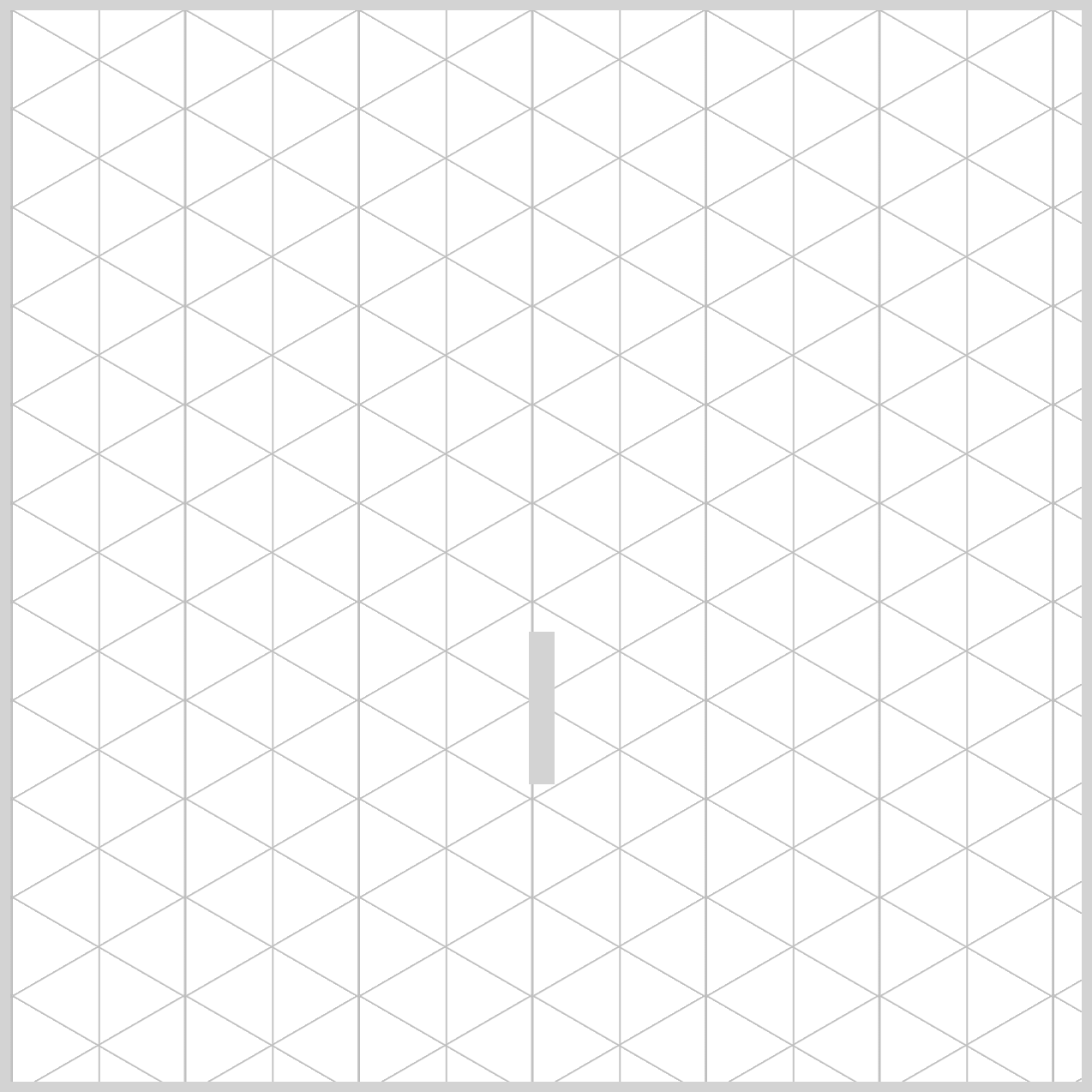
The following CSS code creates the Base Tube, which forms the lowest section of the hi-hat stand's central support column.
/* Tube */
.base-tube {
  width: 12px;
  height: 71px;
  left: 242px;
  top: 290px;
  background: lightgray;
}
The width: 12px and height: 71px properties create a tall, narrow rectangle that resembles a metal support tube. Among the three tube sections, .base-tube, .middle-tube, and .upper-tube, this is the tallest, helping establish the main body of the stand.
The left: 242px and top: 290px properties position the tube near the center of the illustration, keeping it aligned with the surrounding hardware components and joint assemblies.
For layout testing, all the tube uses a simple lightgray background color to represent a metallic surface.
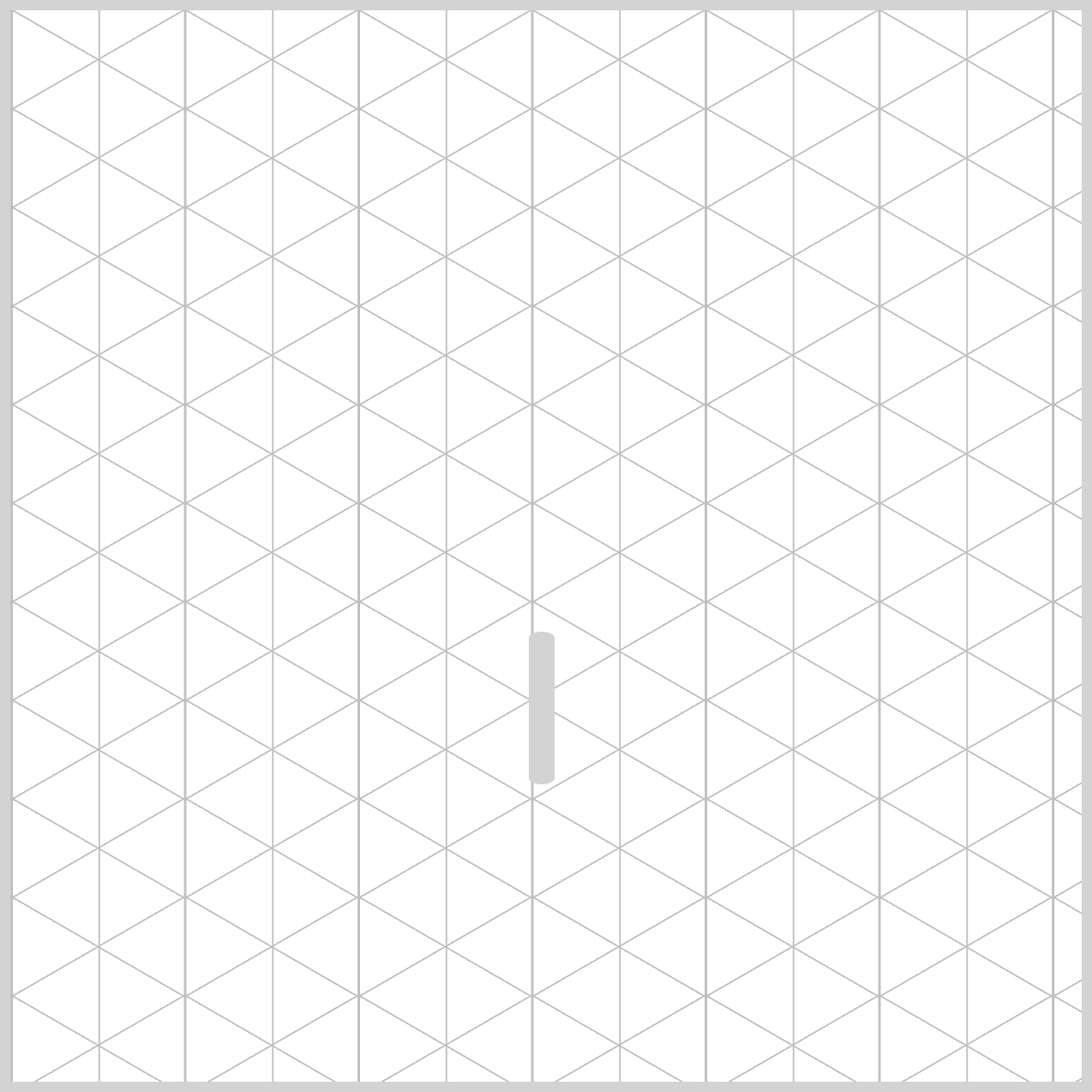
.base-tube {
  border-radius: 95px/45px;
}
The border-radius: 95px/45px property softens the corners of the rectangle, transforming it into a shape that more closely resembles a cylindrical metal tube. All three tubes uses this border-radius property value.
The value before the slash (95px) controls the horizontal radius, while the value after the slash (45px) controls the vertical radius. Together, these values create gently rounded ends that help the tube appear smoother and more realistic, while also supporting the isometric perspective used throughout the hi-hat stand illustration.
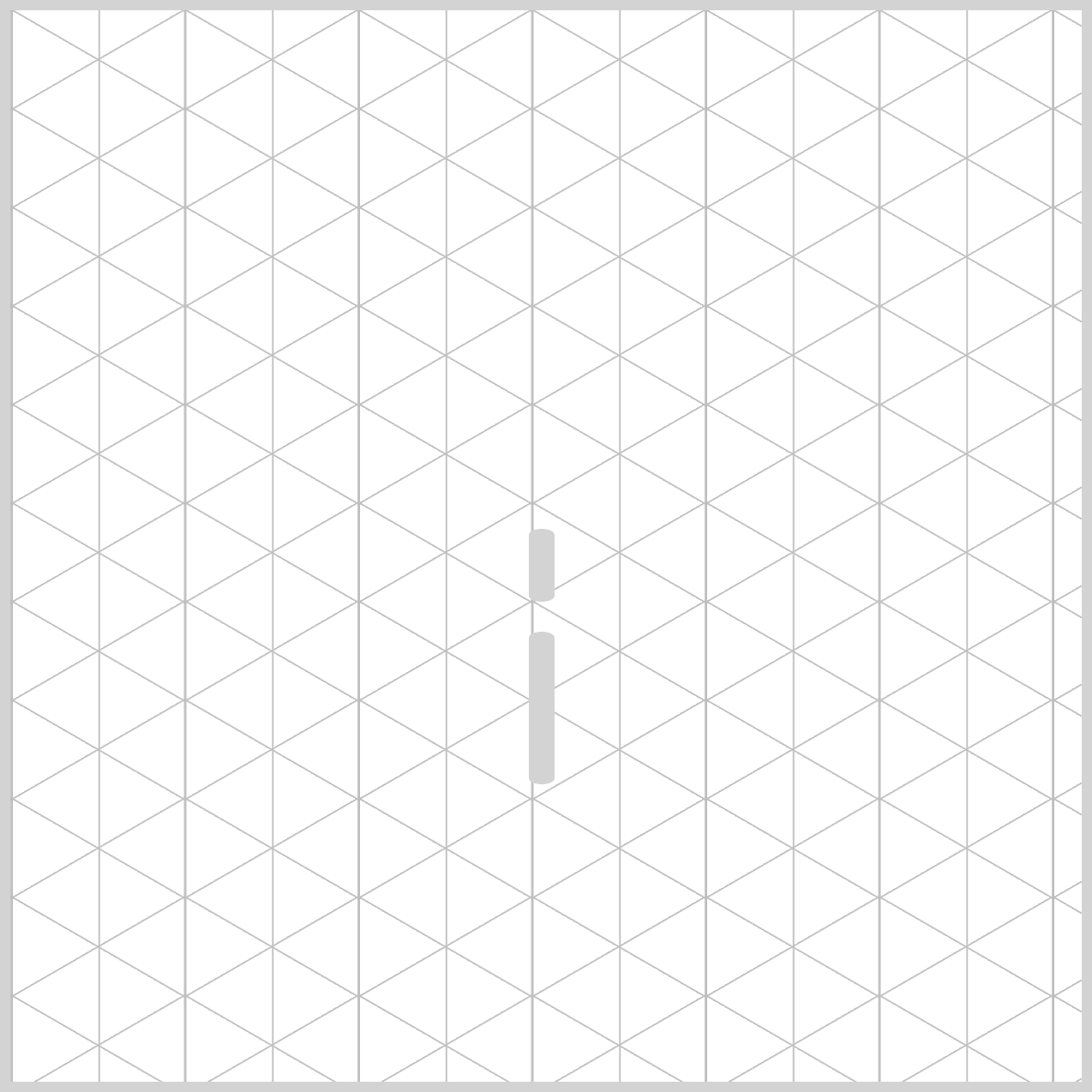
The Middle Tube forms the center section of the hi-hat stand's adjustable support column. Positioned between the .base-tube below and the .upper-tube above, it helps create the appearance of a telescoping stand commonly found on real drum hardware.
.middle-tube {
  width: 12px;
  height: 34px;
  left: 242px;
  top: 242px;
  background: lightgray;
  border-radius: 95px/45px;
}
- The
width: 12pxandheight: 34pxproperties create a slim vertical tube. - The
left: 242pxproperty aligns the tube with the other support sections, whiletop: 242pxpositions it directly above the Base Tube. This placement helps maintain a straight and continuous vertical support column.
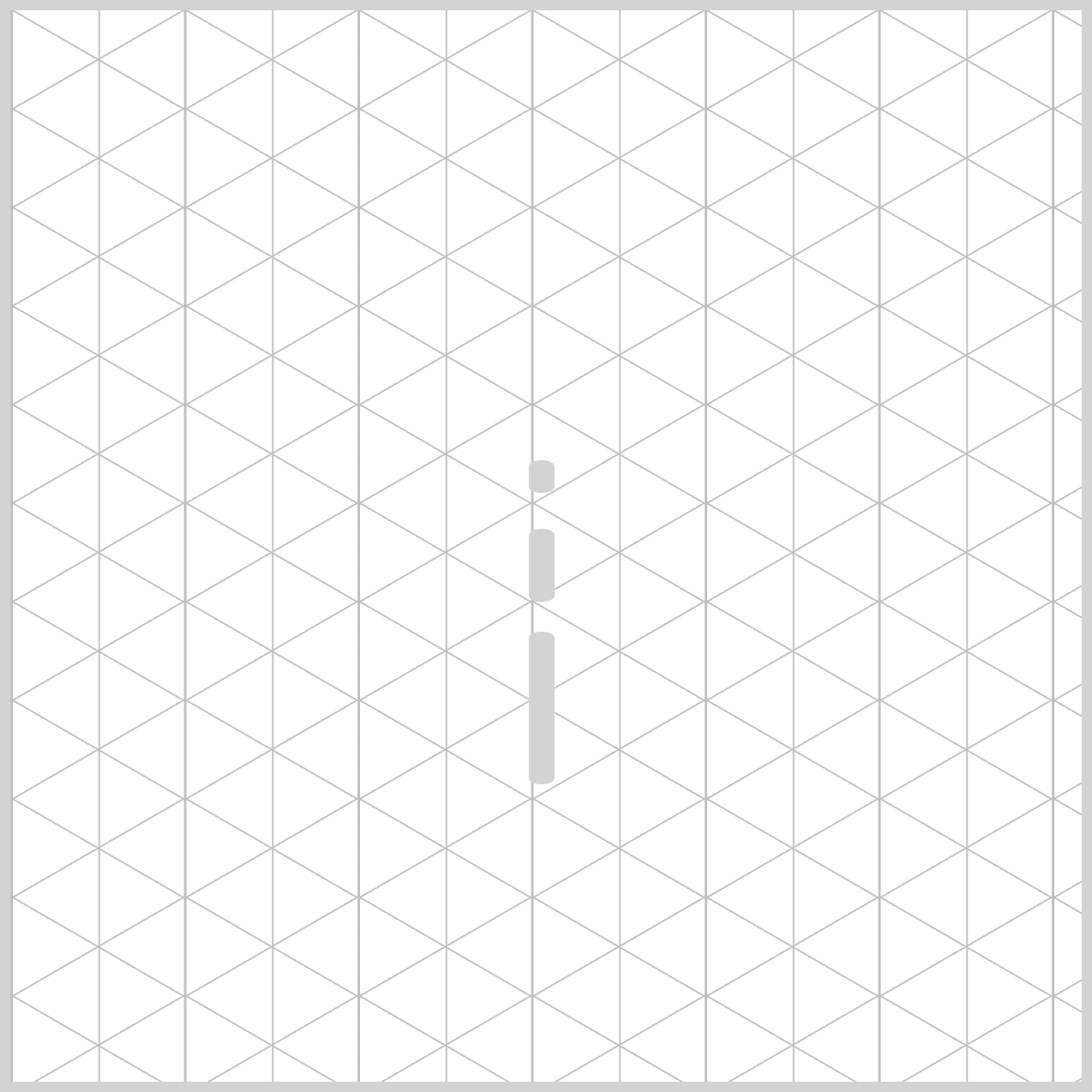
The Upper Tube completes the hi-hat stand's central support column. Positioned above the .middle-tube, this component represents the final visible section of the telescoping stand hardware before the cymbal mechanism begins.
.upper-tube {
  width: 12px;
  height: 15px;
  left: 242px;
  top: 210px;
  background: lightgray;
  border-radius: 95px/45px;
}
The width: 12px and height: 15px properties create a short, narrow rectangle that resembles the top section of a metal support tube. While it shares the same width as the .base-tube and .middle-tube, its shorter height helps create the appearance of a multi-stage adjustable stand.
Using left: 242px aligns the Upper Tube with the other support tubes, keeping all three sections centered along the same vertical axis. The top: 210px property positions it directly above the Middle Tube and just beneath the tilter assembly, helping the individual components connect together seamlessly.
Great work! With the Base Tube, Middle Tube, and Upper Tube now complete, the hi-hat stand's central support column is starting to take shape. Next, let's create the Joint Assembly components.
Joint Assembly
The Joint Assembly components represent the adjustment collars found on real hi-hat stands. These hardware pieces wrap around the support tubes and help connect the different sections of the stand together.
Rather than creating separate styles for each collar, the .joint-assembly class serves as a shared foundation that both .joint-1 and .joint-2 can use.
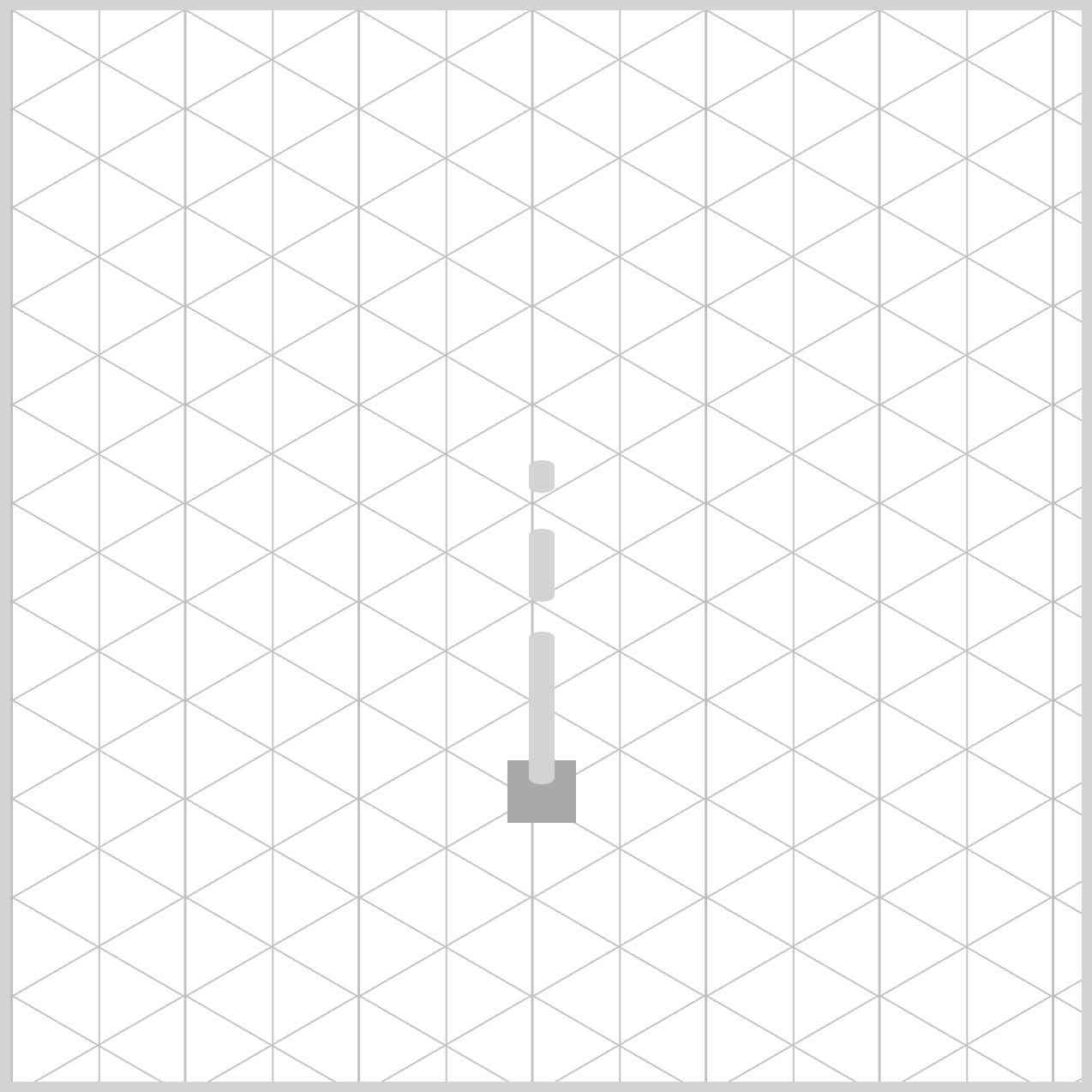
/* Joint Assembly */
.joint-assembly {
  width: 32px;
  height: 29px;
  background: darkgray;
}
The width: 32px and height: 29px properties create a compact rectangular shape that is noticeably wider than the stand's support tubes. This extra width helps the component resemble a clamp or collar that wraps around the center column.
By placing the common dimensions and appearance in a single class, the stylesheet remains cleaner and easier to maintain because the same styles don't need to be repeated for every joint. The background: darkgray property gives the collar a darker color than the three tubes.
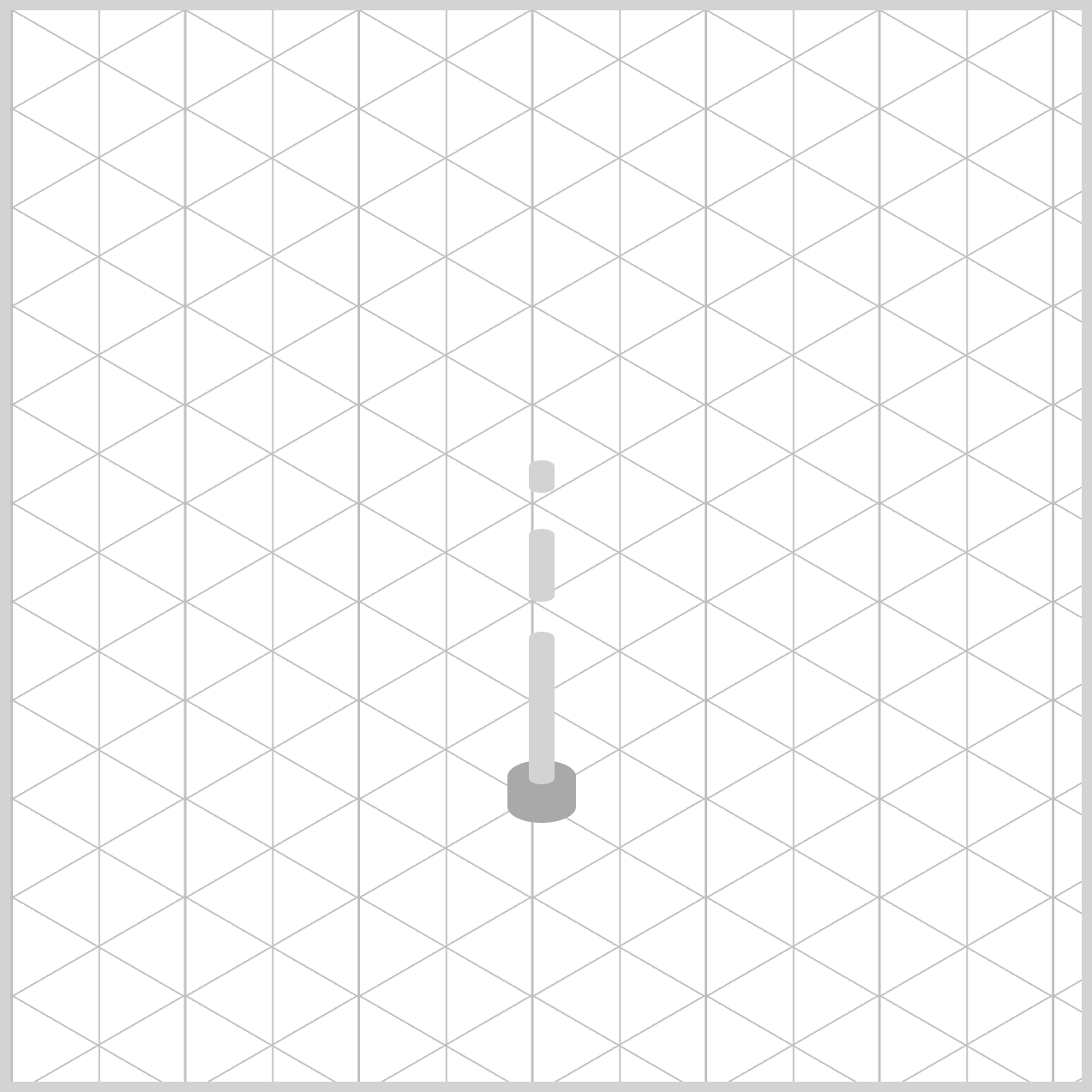
.joint-assembly {
  border-radius: 95px/45px;
}
The border-radius: 95px/45px property rounds the corners of the rectangle, transforming it into a smoother shape that better resembles metal drum hardware.
The .joint-1 and .joint-2 classes position the two adjustment collars along the hi-hat stand's central support column. Both elements inherit their size, color, and rounded shape from the shared .joint-assembly class, while these modifier classes provide the individual coordinates needed to place each collar at a different location on the stand.
.joint-1 {
  left: 232px;
  top: 350px;
}
Both collars use left: 232px, placing them directly over the stand's vertical support tubes. Because they share the same horizontal position, the collars line up neatly with the center column and appear securely attached to the stand hardware.
The top: 350px property value places the collar near the lower section of the stand. This location helps create the appearance of a support clamp where the tripod assembly connects to the central column. It also serves as the visual anchor point for the leg connectors attached below it.
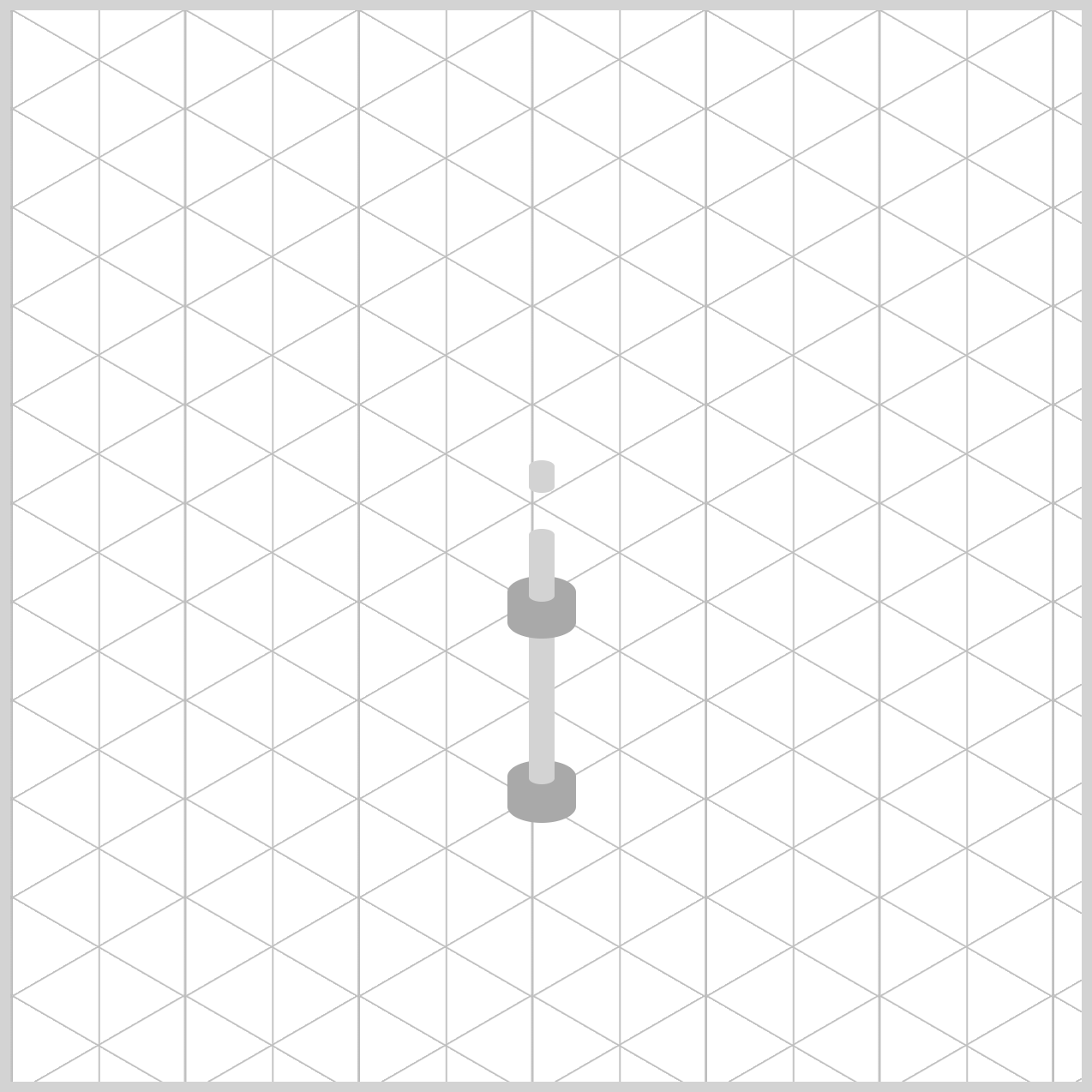
.joint-2 {
  left: 232px;
  top: 264px;
}
The top: 264px property places this collar between the Base Tube and Middle Tube sections. By sitting over the junction between these two support tubes, the collar helps conceal the transition between the elements while creating the appearance of a realistic height-adjustment mechanism commonly found on hi-hat stands.
With the Joint Assembly components now in place, the hi-hat stand is beginning to resemble a real piece of drum hardware. In the next section, you'll create the Tilter component.
Tilter
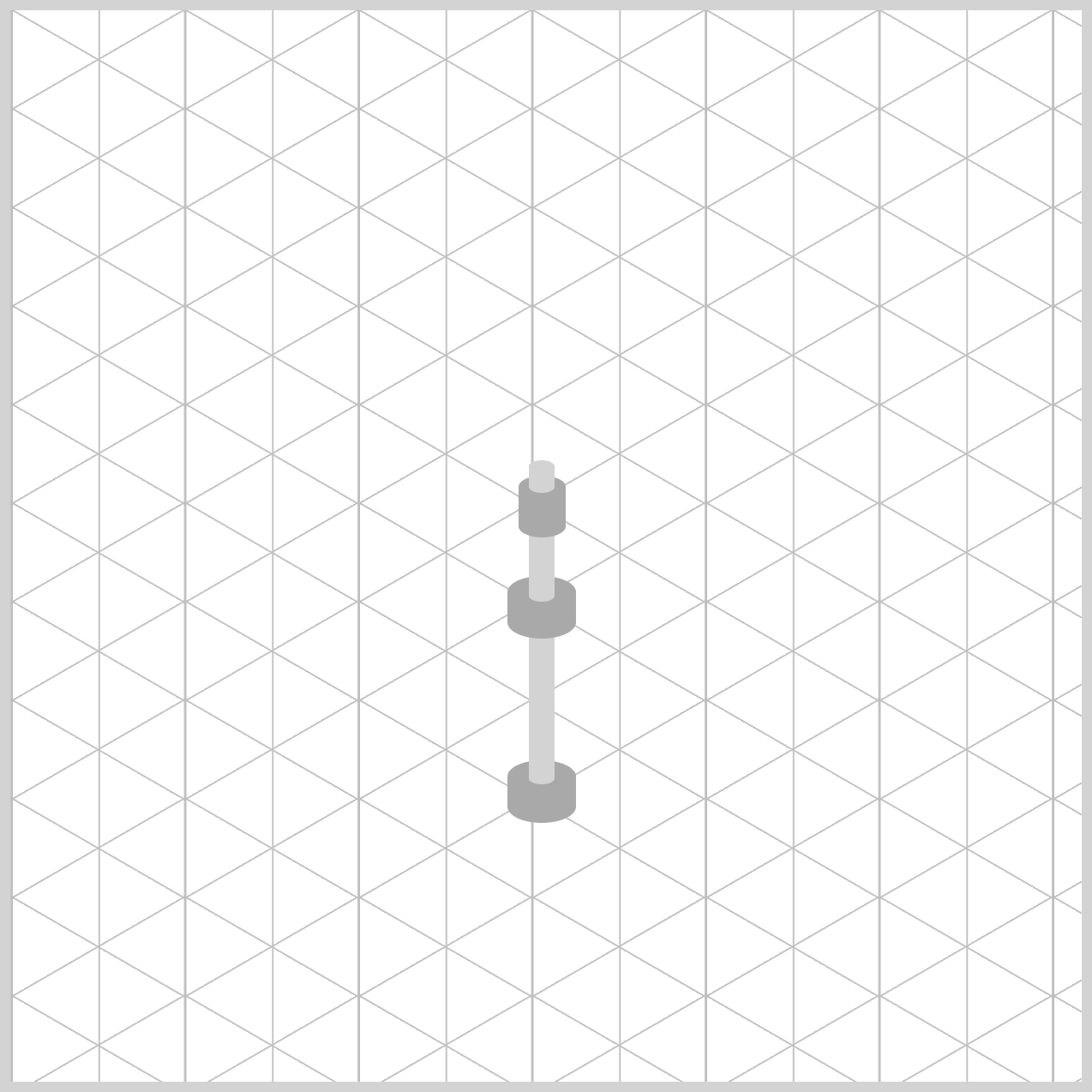
The Tilter is the hardware component that sits between the stand's support column and the hi-hat cymbals. On a real hi-hat stand, this mechanism helps support and position the cymbals. In this illustration, it acts as the final connection point between the telescoping tubes and the hi-hat assembly.
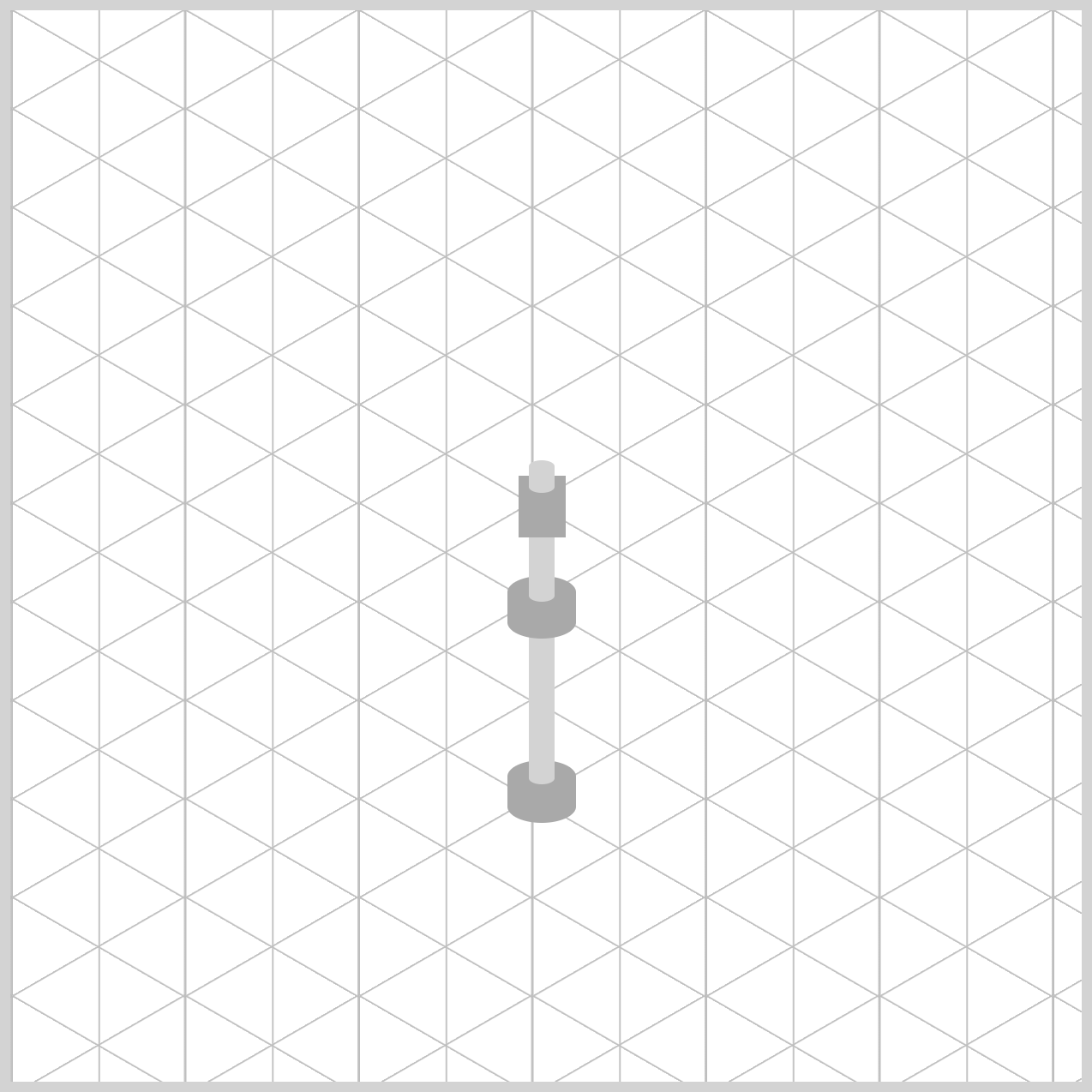
/* Tilter */
.tilter {
  width: 22px;
  height: 29px;
  left: 237px;
  top: 217px;
  background: darkgray;
}
width: 22pxandheight: 29pxproperties create a compact rectangular shape that represents the tilter housing. Its width is larger than the support tubes but smaller than the lower joint assemblies, helping the hardware gradually taper as it approaches the cymbals.left: 237pxandtop: 217pxproperties position the tilter near the top of the stand. It sits directly above the.upper-tubeand helps bridge the transition between the support column and the cymbal assembly. This placement also helps conceal the connection between the different stand components, creating a cleaner and more polished appearance.- The
background: darkgrayproperty uses a darker shade than the surrounding tubes. This contrast helps distinguish the tilter from the lighter support pipes and reinforces the appearance of separate mechanical hardware components.
.tilter {
  border-radius: 95px/45px;
}
The border-radius: 95px/45px property softens the corners of the rectangle, transforming it into a smoother shape that resembles a cast-metal drum hardware component.
With the Tilter completed, the upper section of the stand is now ready to support the hi-hat cymbals. In the next section, you'll begin building the Leg Connectors, which link the tripod legs to the stand's central support column.
Leg Connectors
The Leg Connectors act as a support brace between the stand's central column and the tripod legs. These braces help stabilize the stand and make the hardware look more realistic by connecting the support legs to the lower joint assembly.
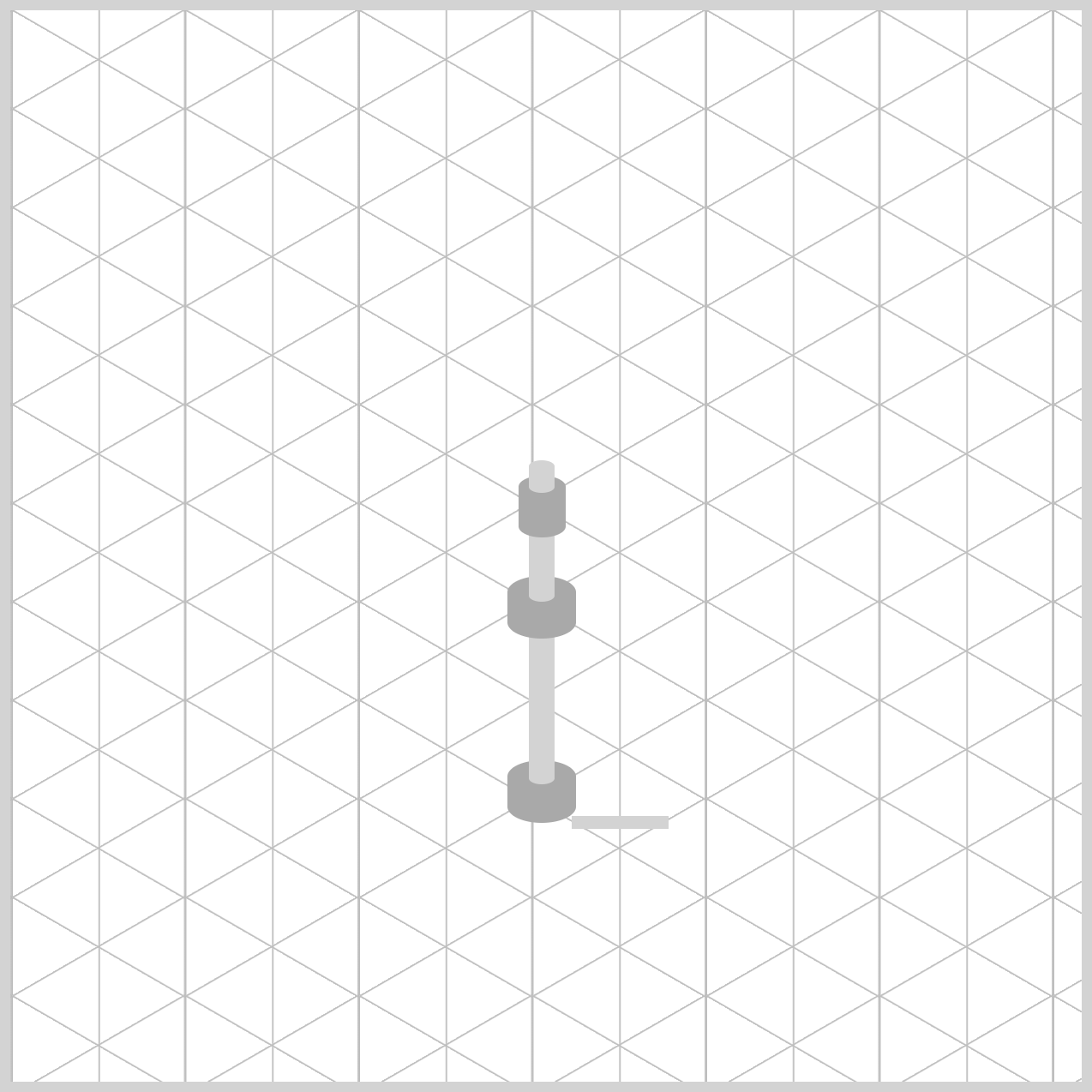
/* First Leg Connector */
.first-leg-connector {
  width: 45px;
  height: 6px;
  left: 262px;
  top: 376px;
  background: lightgray;
}
The width: 45px and height: 6px properties create a long, narrow rectangle that resembles a metal support rod. Its slim profile helps distinguish it from the thicker tubes used for the stand's main support column.
The left: 262px and top: 376px properties position the connector beside the lower joint assembly. This placement allows the brace to extend outward from the center column toward the stand leg, helping reinforce the tripod structure.
The background: lightgray property applies a simple placeholder color that matches the stand's support tubes. The Second and Third Connectors use the same background color.
.first-leg-connector {
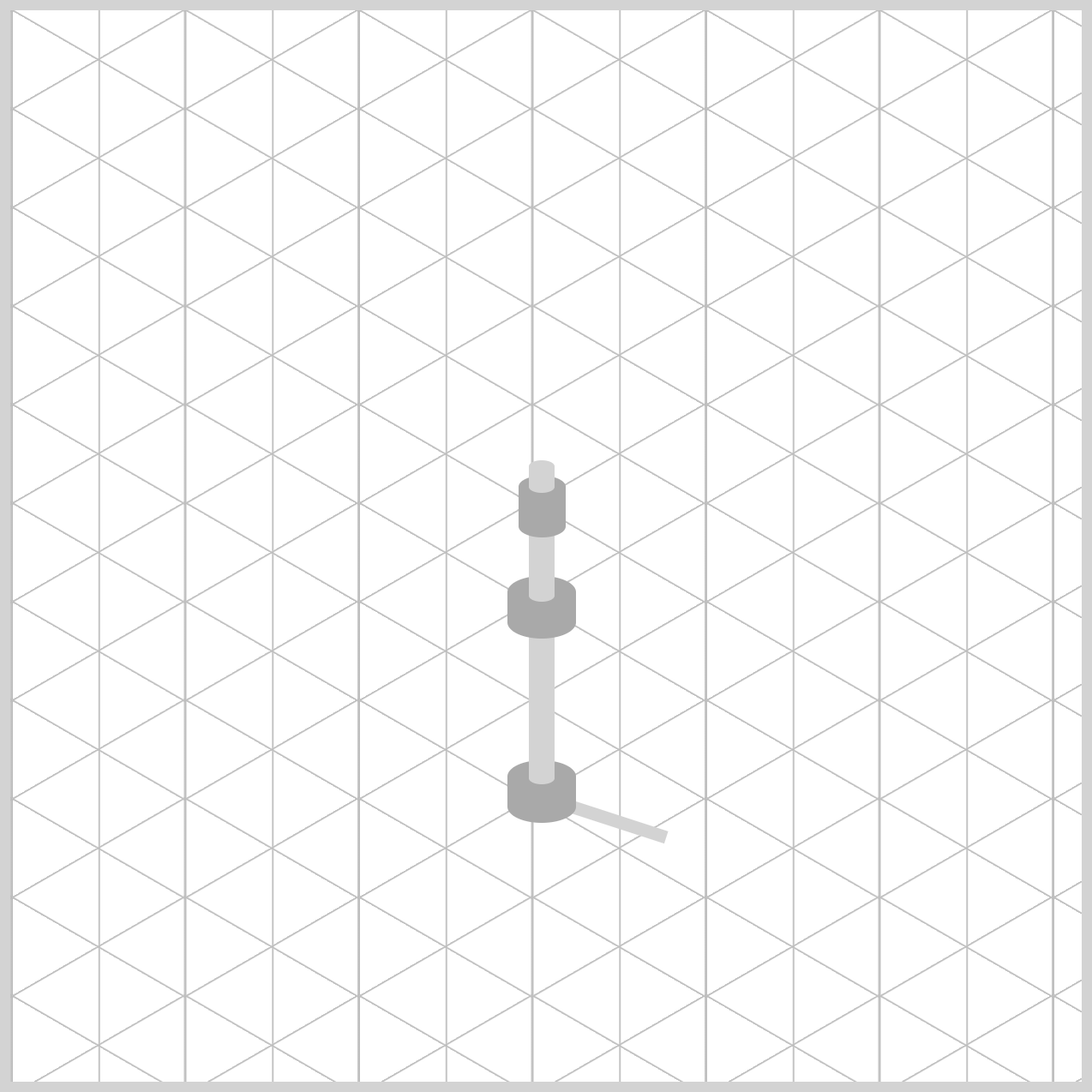
  rotate: 18deg;
}
The rotate: 18deg property tilts the connector clockwise, allowing it to follow the angle of the first leg. This small adjustment helps create a natural-looking mechanical connection between the central stand column and the tripod leg.
With the First Leg Connector completed, the tripod support structure is beginning to take shape. Next, you'll create the Second Leg Connector, which extends toward the opposite side of the stand.
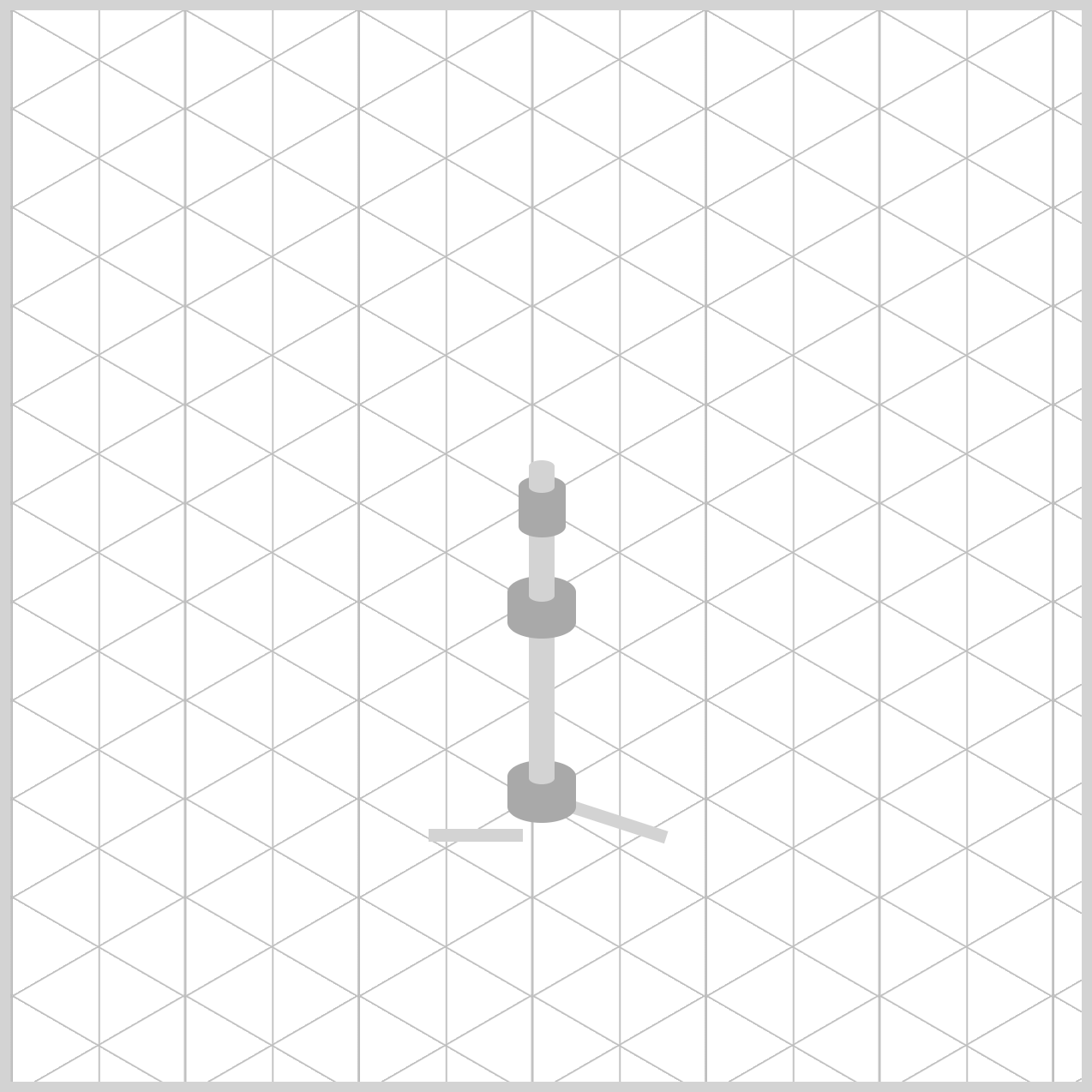
The Second Leg Connector creates the support brace that links the stand's central column to the second tripod leg. Along with the other connectors, it helps reinforce the stand structure and gives the hi-hat hardware a more realistic appearance.
/* Second Leg Connector */
.second-leg-connector {
  width: 44px;
  height: 6px;
  left: 195px;
  top: 382px;
  background: lightgray;
}
width: 44pxandheight: 6pxproperties create a long, thin rectangle that resembles a metal support rod. Its narrow height helps distinguish it from the larger support tubes used throughout the stand, while its width allows it to span the distance between the center column and the second leg.left: 195pxandtop: 382pxproperties position the connector on the left side of the stand. This placement allows the brace to extend outward from the lower joint assembly toward the second support leg, helping complete the tripod structure.
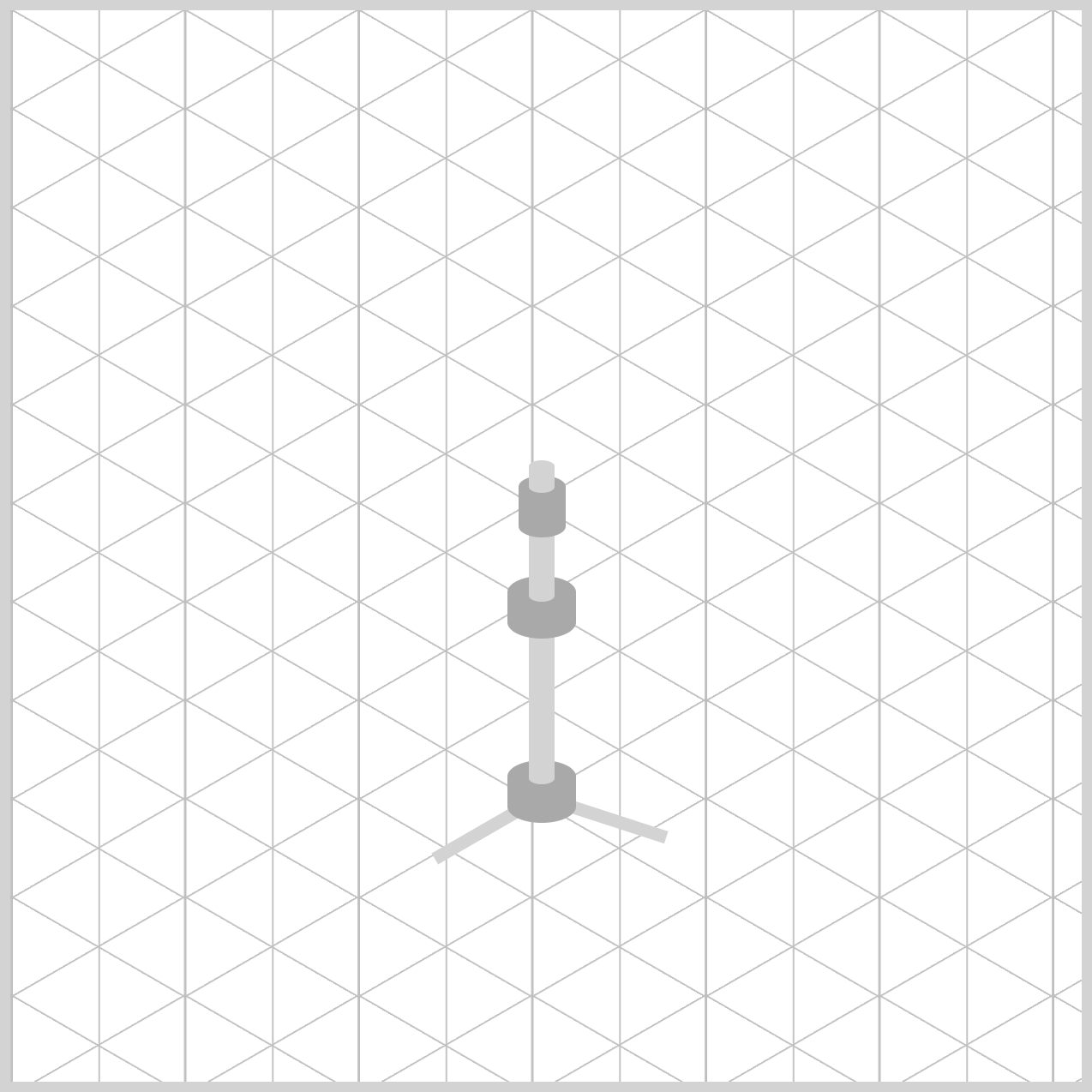
.second-leg-connector {
  rotate: 150deg;
}
rotate: 150deg property turns the connector so it follows the direction of the second leg. This rotation helps create a natural-looking mechanical connection between the stand's central column and the tripod support.
With the Second Leg Connector completed, the tripod assembly is beginning to take shape. In the next section, you'll create the Third Leg Connector, finishing the support brace system for the hi-hat stand.
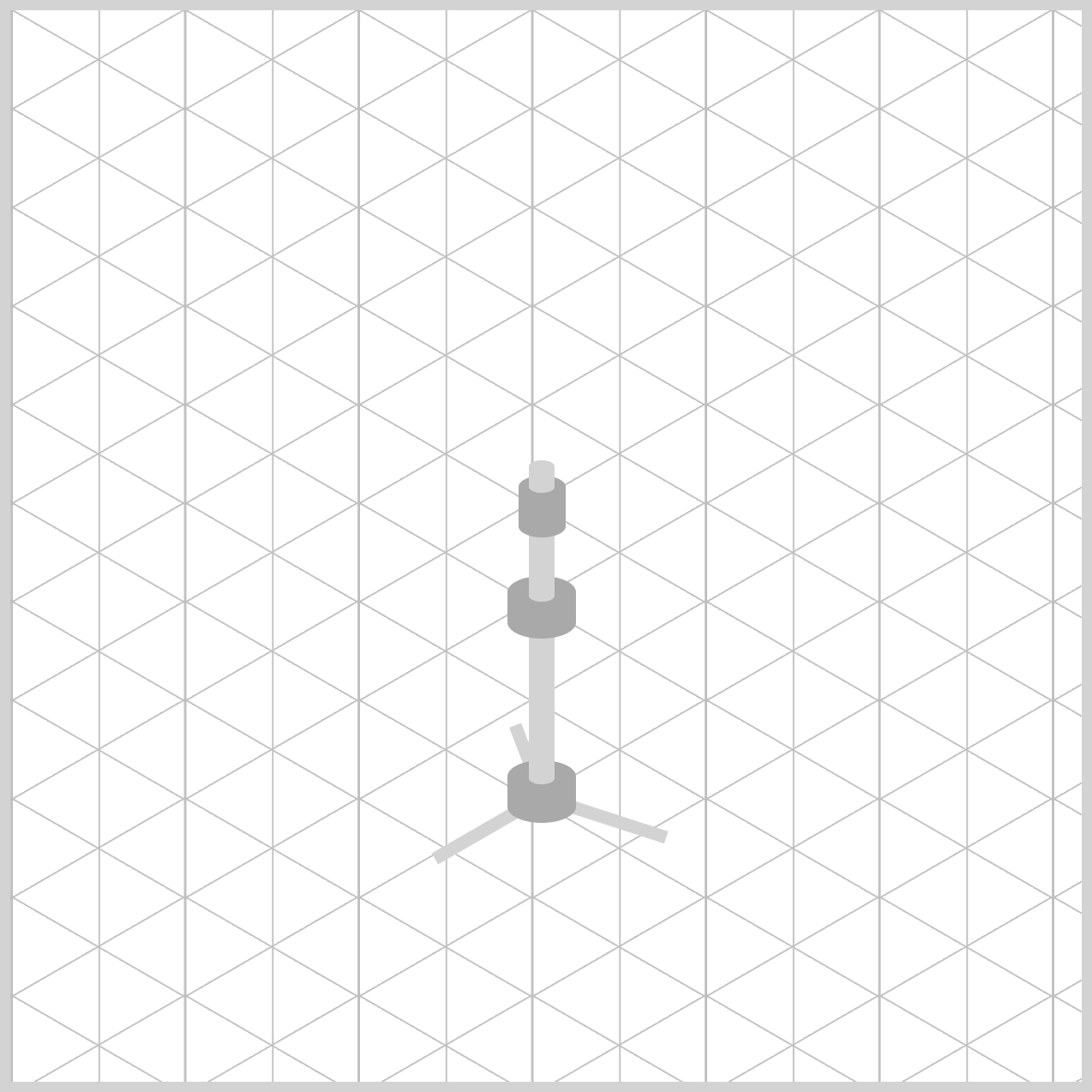
The Third Leg Connector creates the final support brace of the tripod assembly. This component connects the stand's central column to the Third Leg, helping complete the three-legged support structure. Although it is shorter than the other connectors, it plays an important role in making the stand appear stable and mechanically realistic.
/* Third Leg Connector */
.third-leg-connector {
  width: 20px;
  height: 6px;
  left: 229px;
  top: 340px;
  background: lightgray;
  rotate: 69deg;
}
The width: 20px and height: 6px properties create a short, narrow support bar. Unlike the first and second connectors, this brace is noticeably shorter. This reduced width helps create the illusion of depth, making the connector appear as if it is extending toward a leg positioned further back in the scene.
left: 229px and top: 340px properties position the connector close to the center column and slightly higher than the other two support braces. This placement helps reinforce the perspective of the illustration by suggesting that the Third Leg sits behind the foreground legs.
The rotate: 69deg property tilts the connector clockwise. This angle helps the brace follow the direction of the Third Leg, creating a natural-looking mechanical connection between the central support column and the rear leg of the tripod.
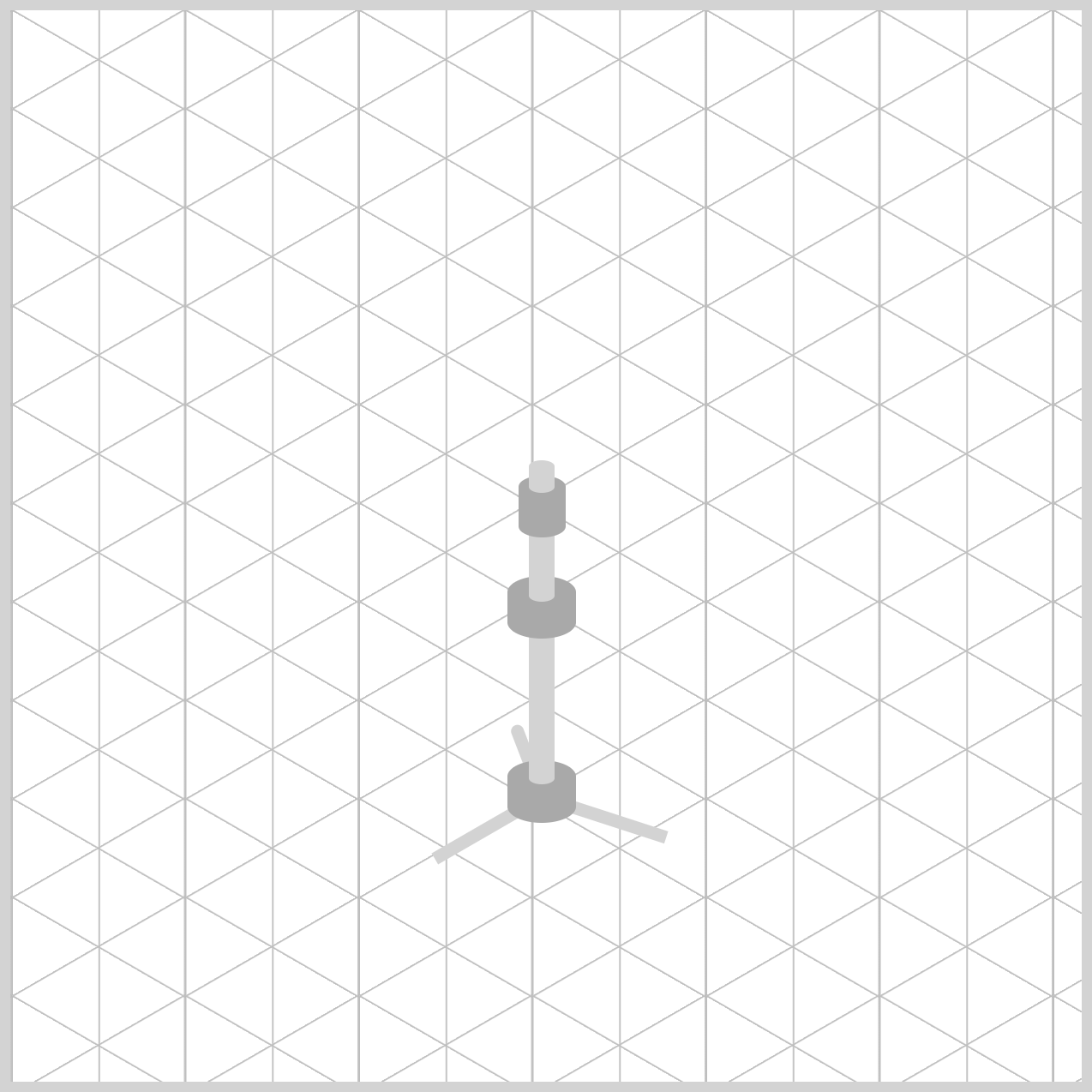
.third-leg-connector {
  border-radius: 5px 0 0 5px;
}
border-radius: 5px 0 0 5px property rounds only the left corners of the connector while leaving the right side flat. This subtle detail helps the brace resemble a metal support arm attached to a hinge or pivot point.
With the First Leg Connector, Second Leg Connector, and Third Leg Connector completed, the support brace system of the hi-hat stand is now finished. In the next section, you'll create the tripod legs that support the entire stand structure.
First Leg
The First Leg forms the right-side support of the hi-hat stand's tripod base. Along with the other two legs, it helps create a wide and stable foundation that supports the stand and cymbals above.
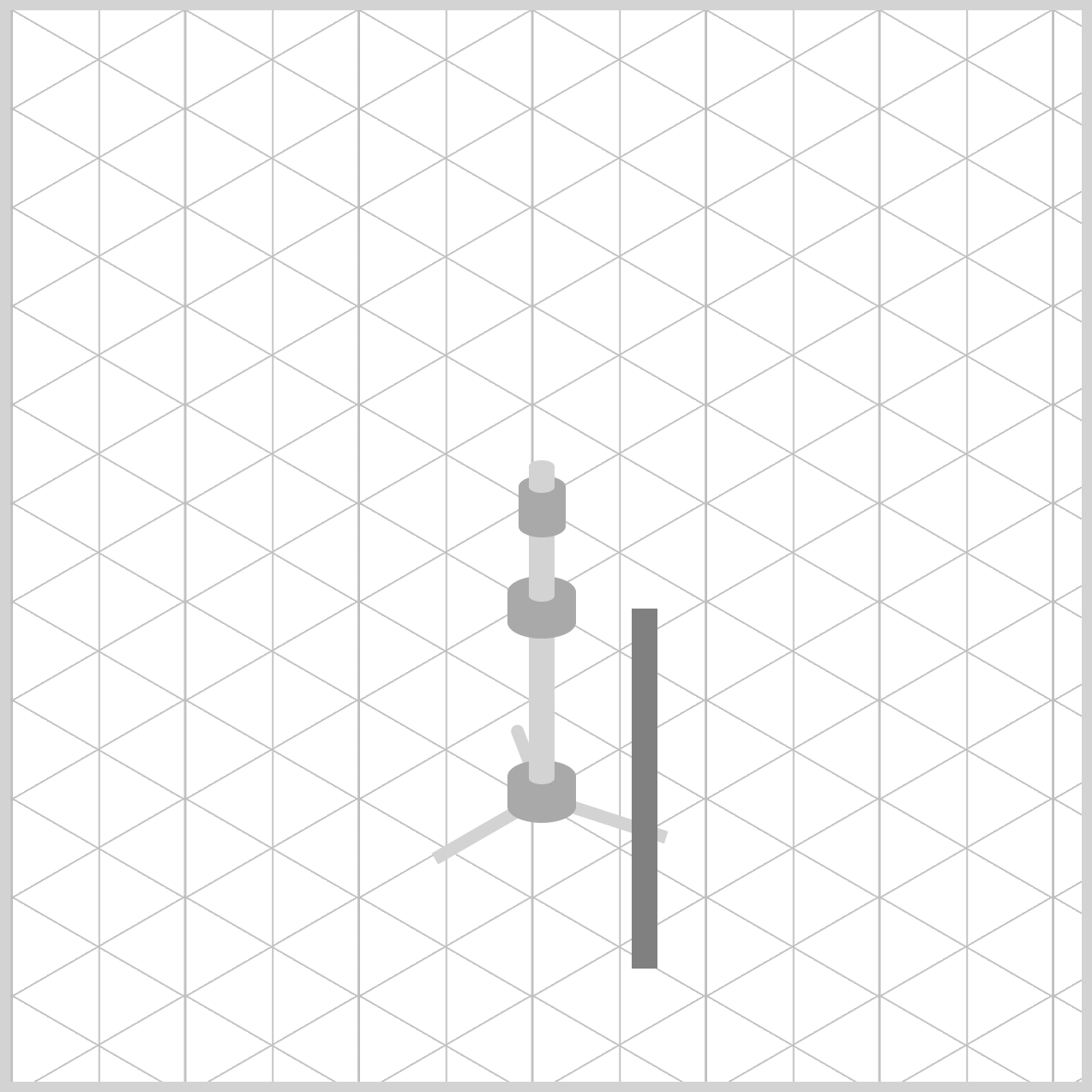
/* First Leg */
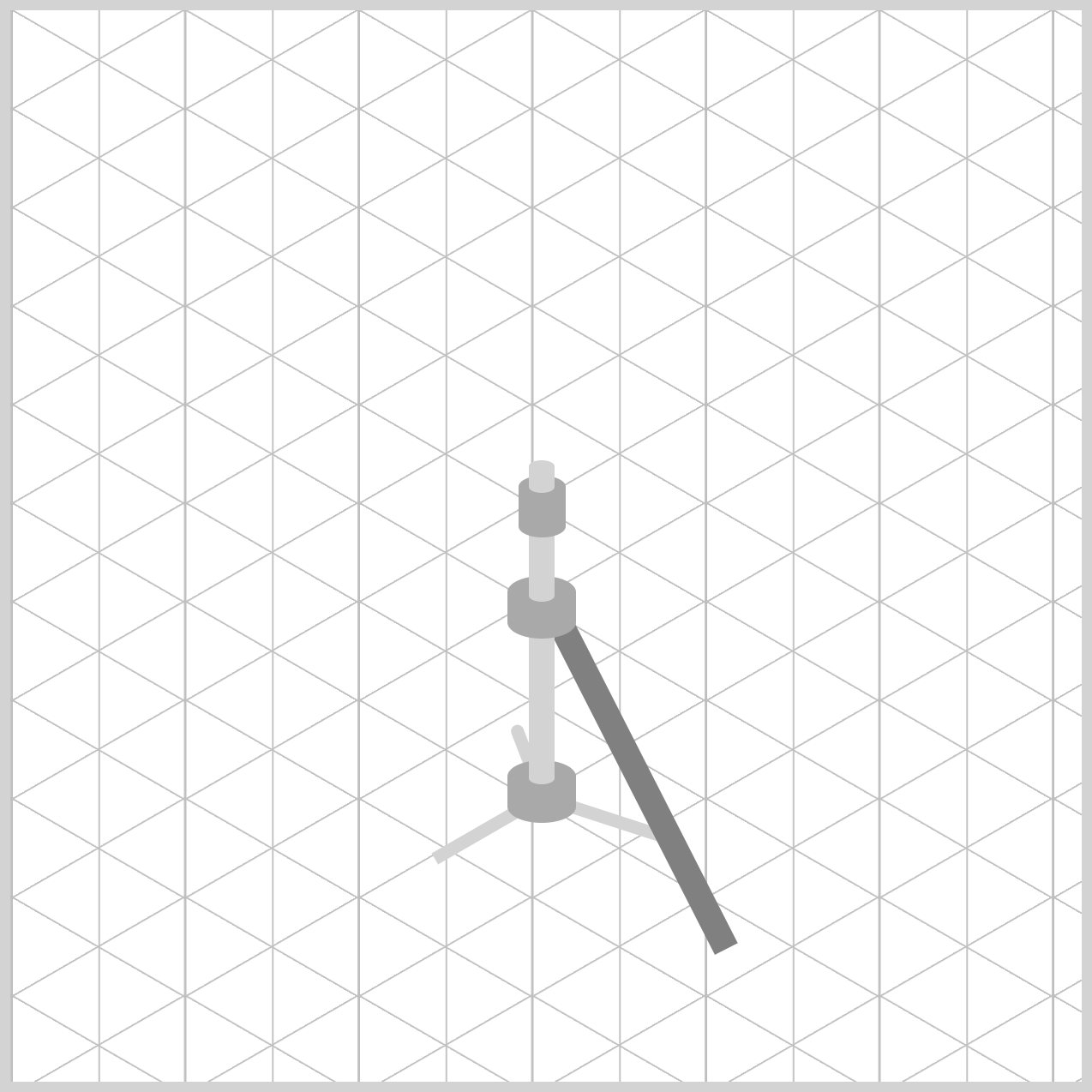
.stand-first-leg {
  width: 12px;
  height: 168px;
  left: 290px;
  top: 279px;
  background: gray;
}
width: 12pxandheight: 168pxproperties create a long, narrow rectangle that resembles a metal support leg. Its width matches the stand's support tubes, helping maintain a consistent appearance throughout the illustration. The tall height allows the leg to extend outward from the stand and reach the floor area, creating a sturdy-looking support structure.left: 290pxandtop: 279pxproperties position the leg on the right side of the central support column. Placing the leg slightly away from the center helps establish the wide footprint commonly seen on real hi-hat stands.background: grayproperty applies a simple placeholder color while building the illustration. This neutral tone helps distinguish the leg from the lighter connectors and support tubes. The Second Leg uses the same color property.
.stand-first-leg {
  rotate: -27deg;
}
The rotate: -27deg property angles the leg outward, creating the characteristic spread of a tripod stand. This rotation helps the stand appear more balanced and stable while giving the hardware a more realistic appearance.
.stand-first-leg {
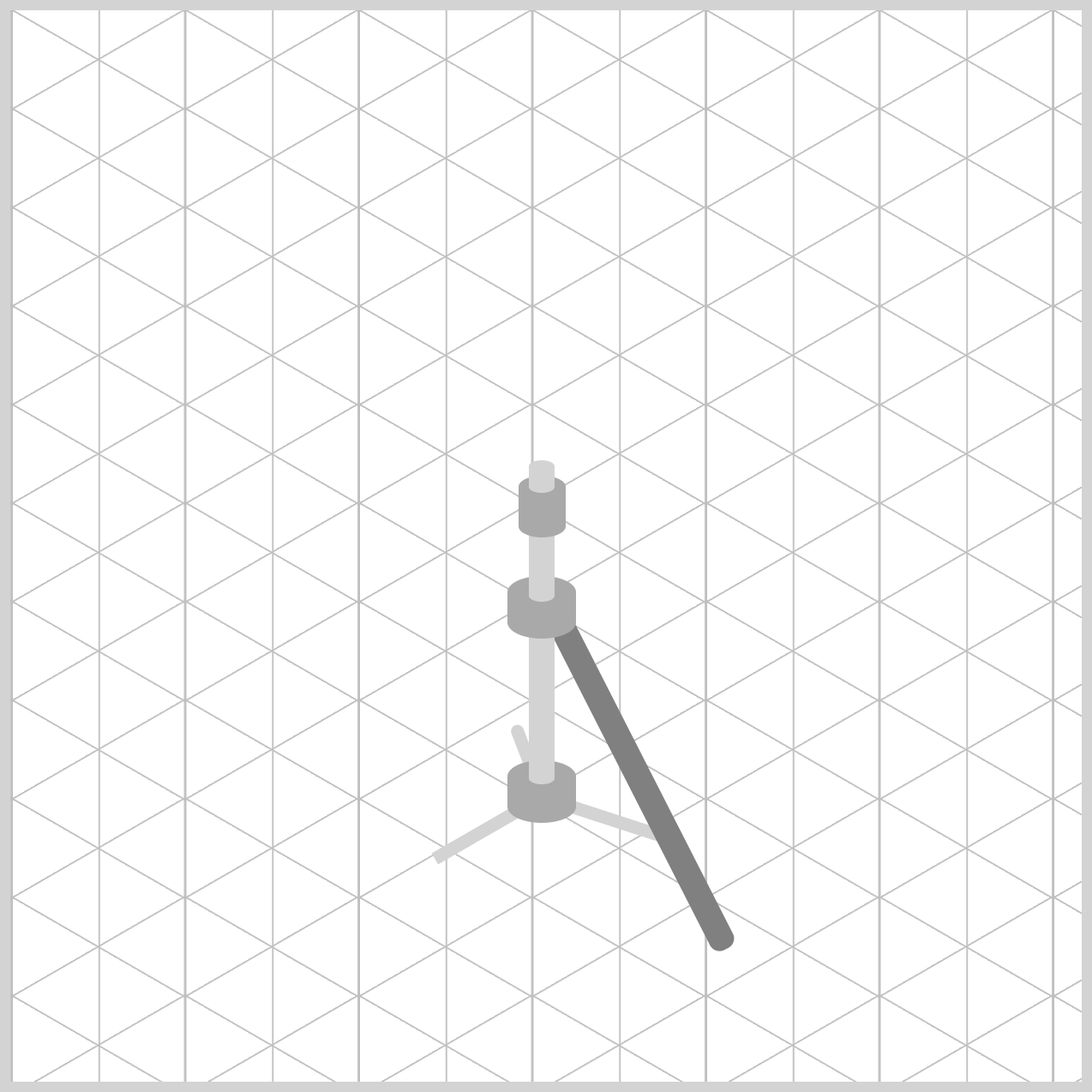
  border-radius: 0 0 5px 5px;
}
border-radius: 0 0 5px 5px rounds only the bottom corners of the leg while keeping the top edge flat. This subtle detail helps the bottom of the leg resemble a protective rubber foot commonly found on drum hardware, while allowing the upper portion to connect cleanly to the stand assembly.
With the First Leg complete, the tripod base is beginning to take shape. Next, you'll create the Second Leg, which extends outward on the opposite side of the stand to help complete the support structure.
Second Leg
The Second Leg forms the left side of the hi-hat stand's tripod base. Positioned opposite the First Leg, it helps create the wide support structure that keeps the stand balanced and stable.
/* Second Leg */
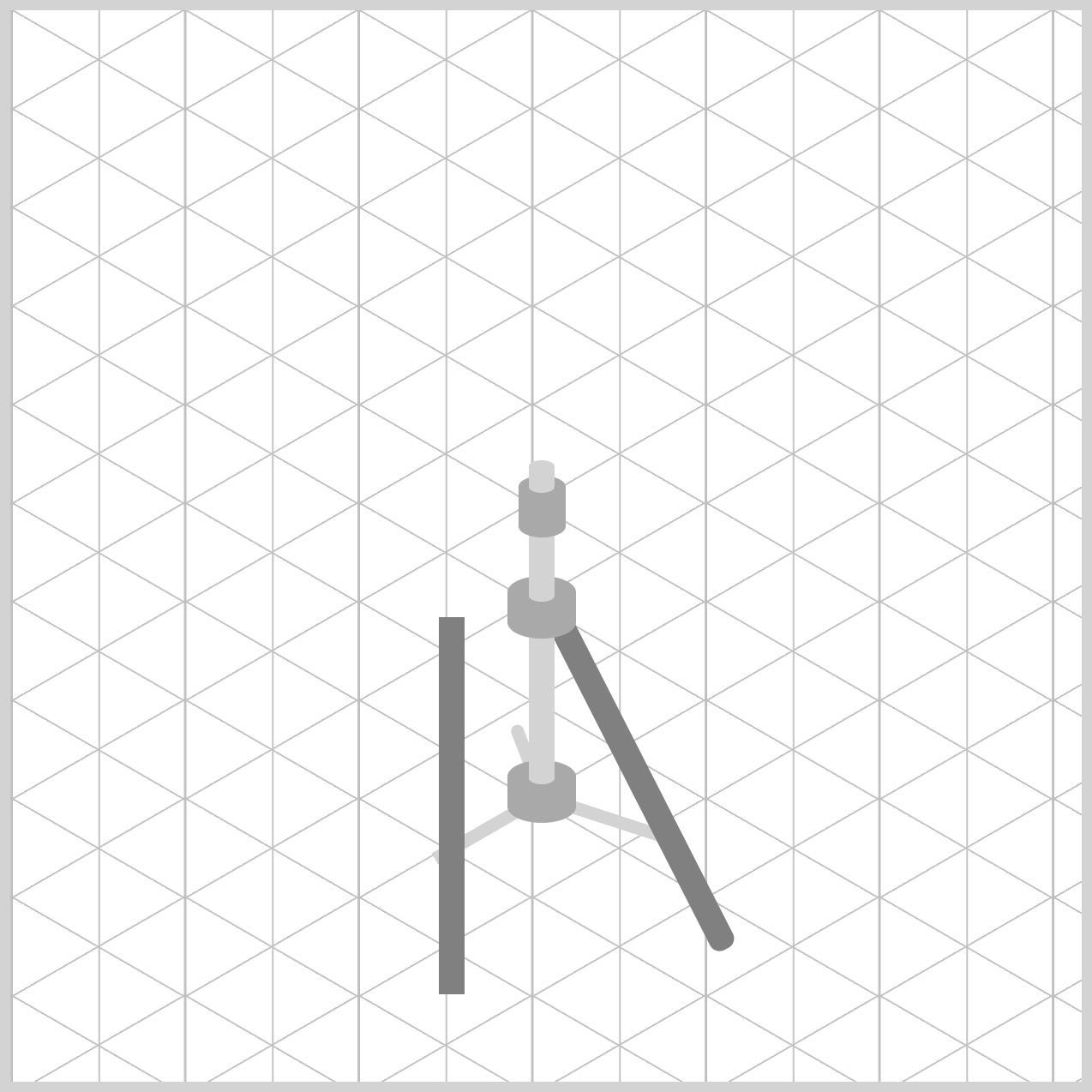
.stand-second-leg {
  width: 12px;
  height: 176px;
  left: 200px;
  top: 283px;
  background: gray;
}
The width: 12px and height: 176px properties create a long, narrow rectangle that resembles a metal support tube. Its width matches the other stand legs and support tubes, helping maintain a consistent appearance throughout the illustration. At 176px tall, this leg is slightly longer than the First Leg, helping it extend farther toward the floor and balance the overall tripod structure.
The left: 200px and top: 283px properties position the leg on the left side of the stand. This placement allows the leg to spread outward from the center column, creating the broad foundation commonly found on real hi-hat stands.
.stand-second-leg {
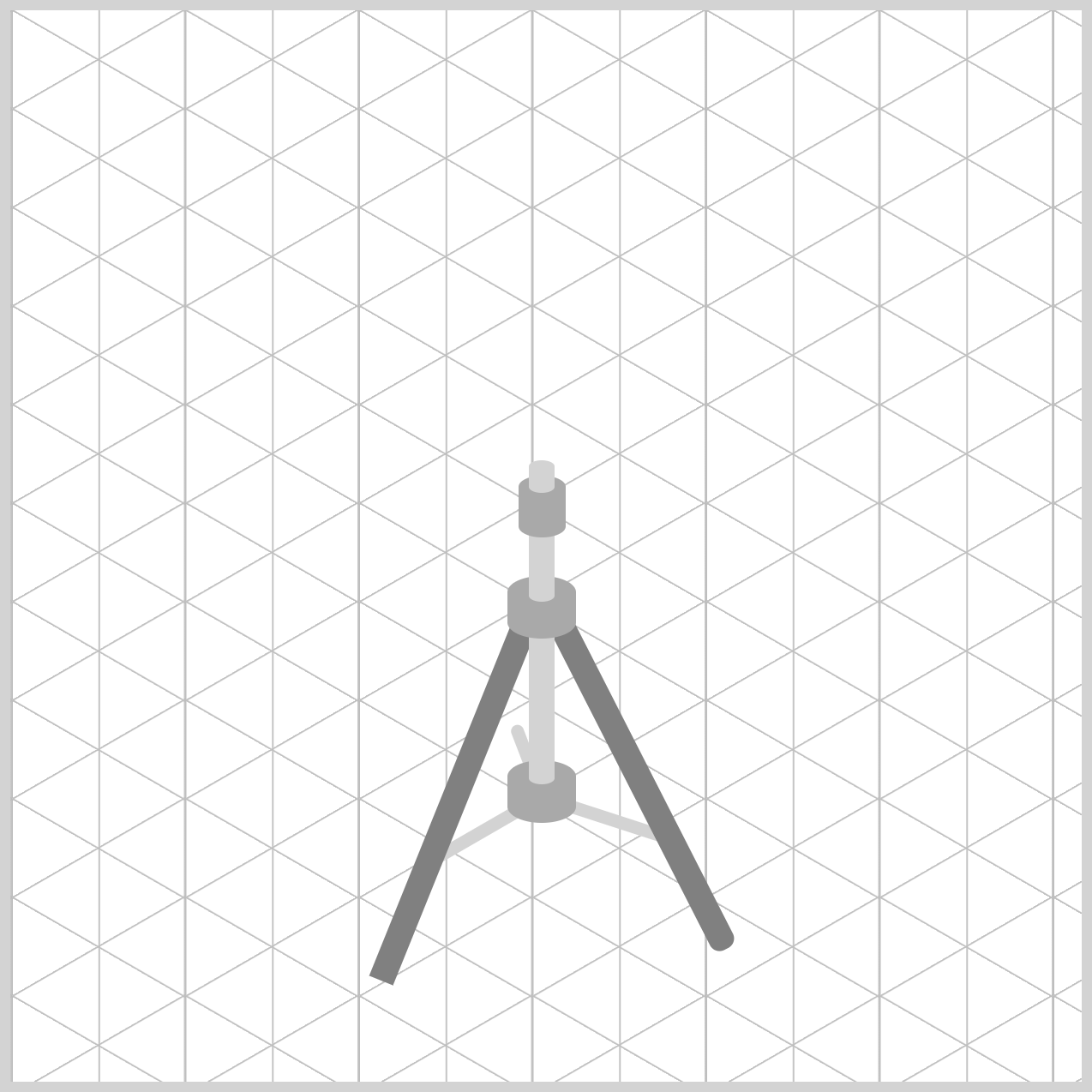
  rotate: 22deg;
}
The rotate: 22deg property angles the leg outward toward the left side of the illustration. This rotation helps create the familiar tripod stance and balances the angle of the First Leg on the opposite side. Together, both legs form a wide and stable support base beneath the hi-hat stand.
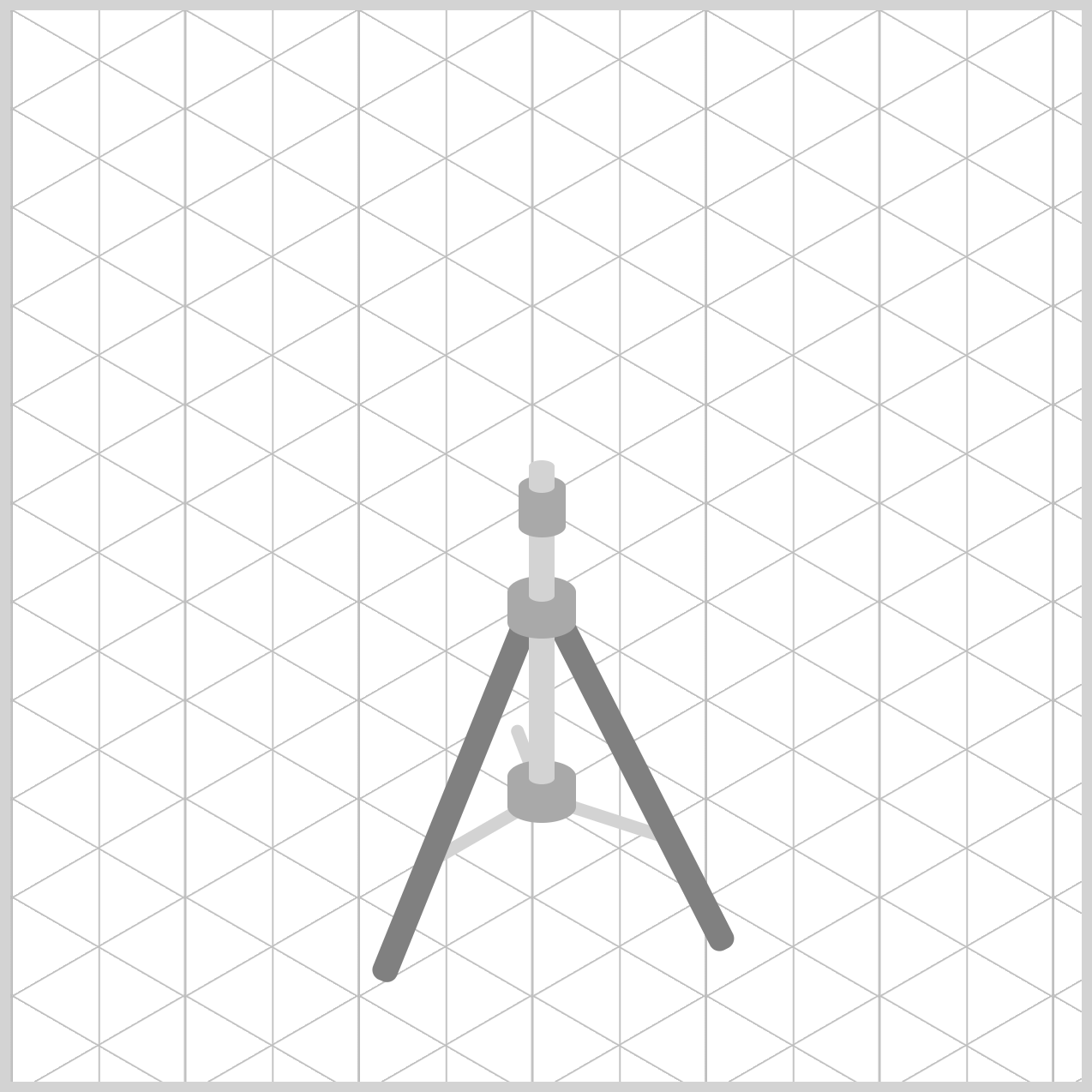
.stand-second-leg {
  border-radius: 0 0 5px 5px;
}
The border-radius: 0 0 5px 5px property rounds only the bottom corners of the leg while keeping the top edge flat.
With the Second Leg complete, the left and right sides of the tripod base are now in place. In the next section, you'll create the Third Leg, which extends toward the viewer and completes the hi-hat stand's three-legged support structure.
Third Leg
The Third Leg completes the hi-hat stand's tripod base. Unlike the First and Second Legs, this leg sits further back in the illustration, helping create the illusion of depth and perspective. Although it is shorter than the front legs, it plays an important role in making the stand appear balanced and three-dimensional.
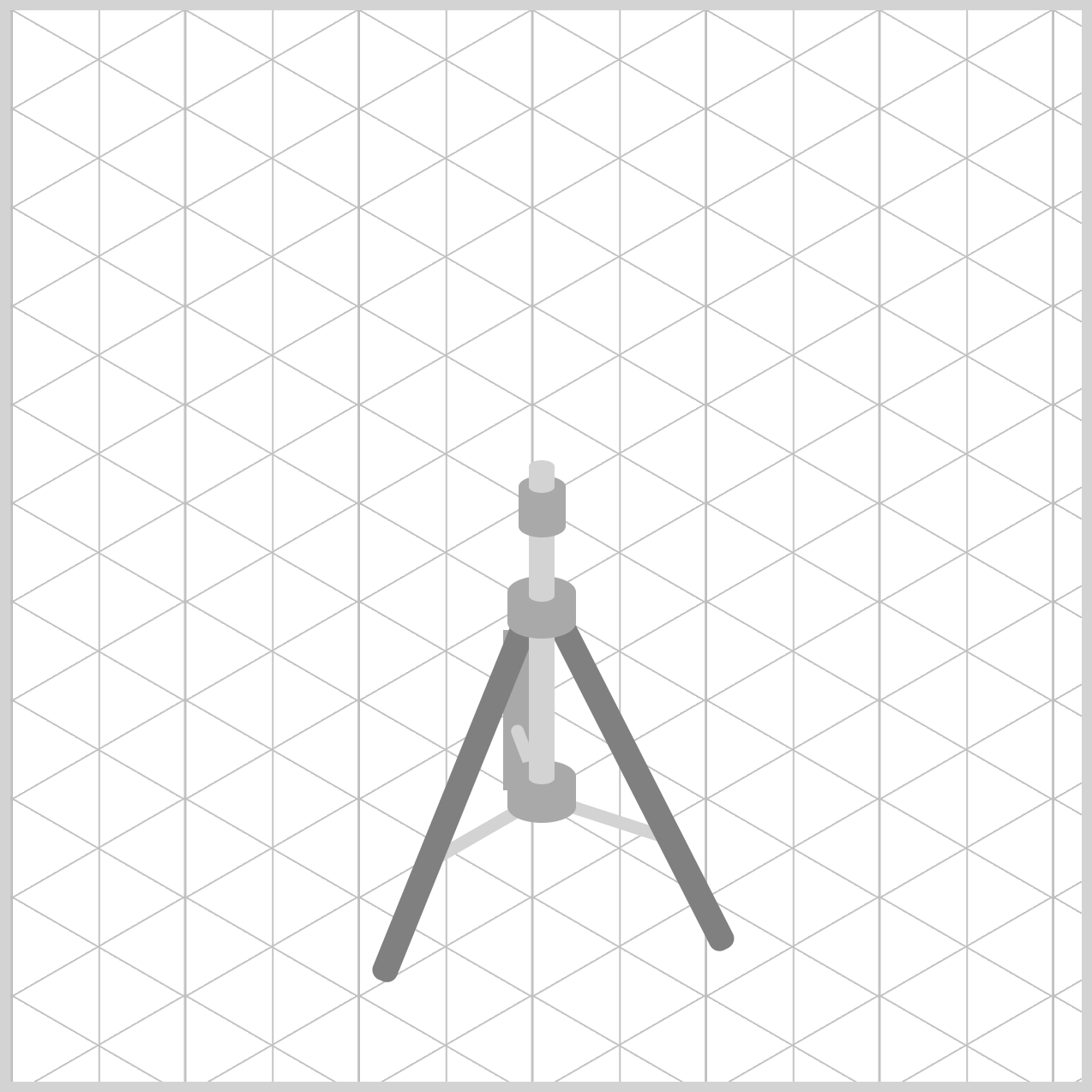
/* Third Leg */
.stand-third-leg {
  width: 12px;
  height: 75px;
  left: 230px;
  top: 289px;
  background: darkgray;
}
The width: 12px and height: 75px properties create a narrow support tube that matches the width of the other legs. However, at 75px tall, it is considerably shorter than the First and Second Legs. This shorter height helps create a sense of perspective, making the leg appear as though it extends away from the viewer and further into the background.
The left: 230px and top: 289px properties position the leg close to the center support column. Unlike the front legs that spread outward to the left and right, the Third Leg remains closer to the stand's central axis, reinforcing its role as the rear support of the tripod.
The background: darkgray property uses a slightly darker shade than the other legs. This subtle contrast helps push the leg visually into the background and enhances the illusion of depth within the illustration.
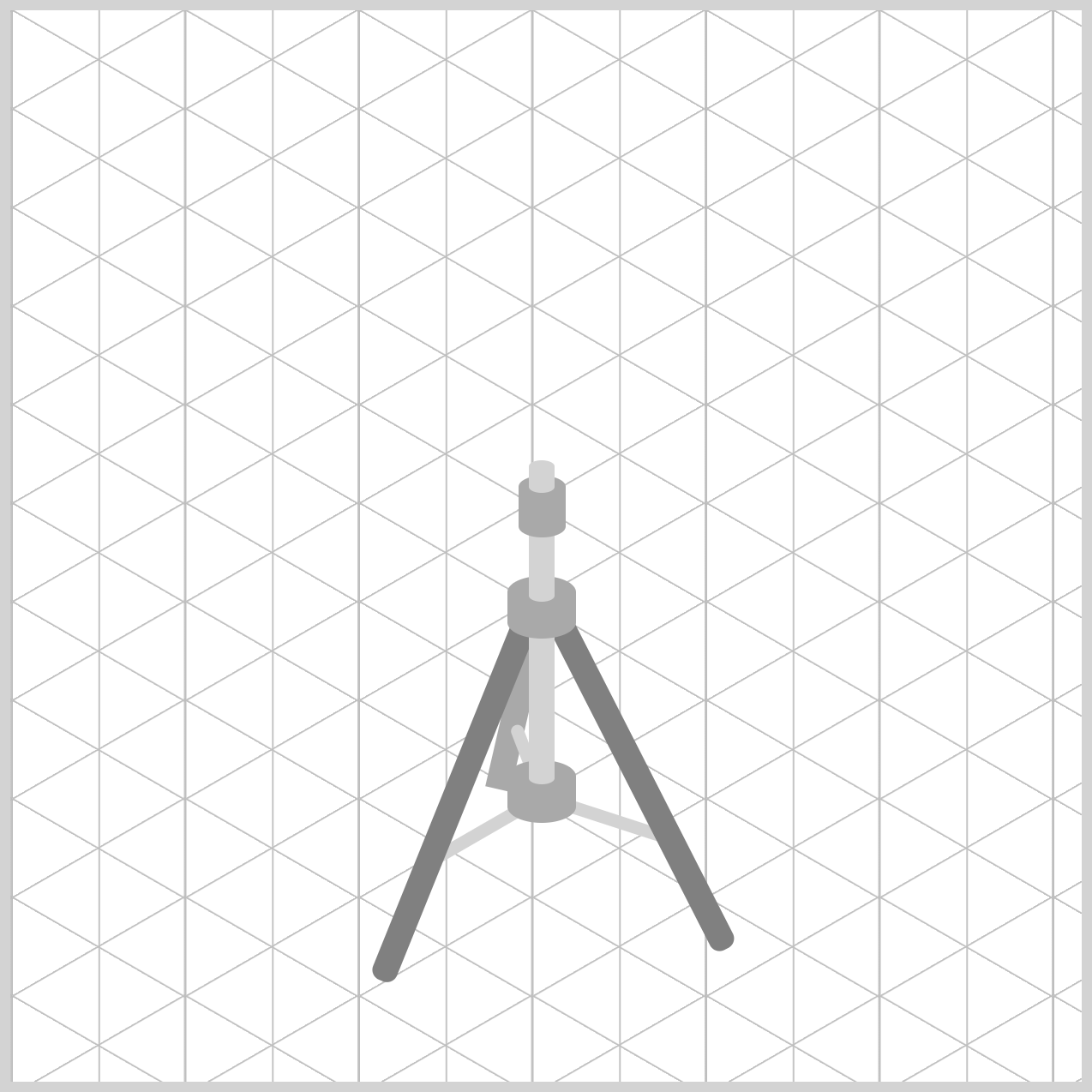
.stand-third-leg {
  rotate: 13deg;
}
The rotate: 13deg property tilts the leg slightly clockwise. Compared to the more dramatic angles of the front legs, this gentler rotation helps the Third Leg appear positioned behind the stand while still contributing to the overall stability of the tripod structure.
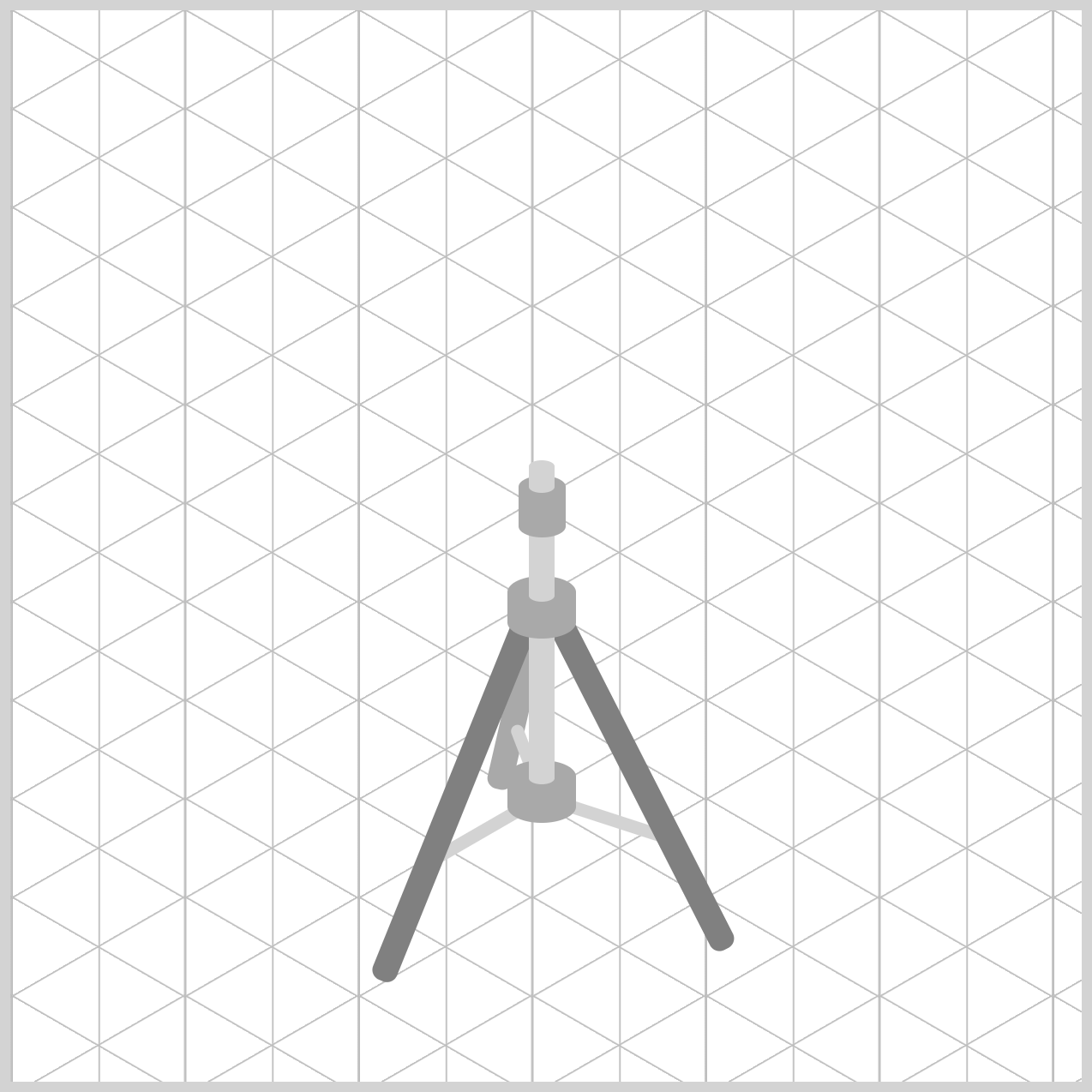
.stand-third-leg {
  border-radius: 0 0 5px 5px;
}
The border-radius: 0 0 5px 5px property rounds only the bottom corners of the leg. This small detail helps create the appearance of a rubber foot resting on the floor while keeping the top edge flat so it connects neatly to the stand hardware.
With the First Leg, Second Leg, and Third Leg completed, the tripod base of the hi-hat stand is now finished. The support structure is in place, and you're ready to move on to the Hi-Hat Assembly, where you'll begin creating the cymbals and hardware mounted at the top of the stand.
You can see and play with the complete code on Pyxofy’s CodePen page.
See the Pen CSS Art – Build an Isometric Hi-Hat with Gradients & Rotate by Pyxofy (@pyxofy) on CodePen.
Conclusion
Congratulations! You've completed the CSS Hi-Hat Cymbal Stand while exploring essential CSS Art techniques.
Throughout this article, you used position, left, top, width, and height for precise placement, rotate to create realistic tripod angles, and border-radius with elliptical slash notation to transform simple rectangles into tubes, collars, and cymbal hardware.
These fundamental CSS techniques can be combined to create detailed illustrations entirely in the browser. What will you build next with your new CSS Art skills? Share your masterpiece with us on LinkedIn, Threads, Bluesky, Mastodon, X (Twitter) @pyxofy, or Facebook.
We hope you liked this article. Kindly share it with your network. We appreciate it.
Related Articles


 Pyxofy
 Pyxofy


 Pyxofy